Uploads
Lyntaris allows you to upload images, audio, video (selected models), and files directly from the chat. In this section, you'll learn how to enable and use these features.
Images
Certain Language Models (LLMs) have vision capabilities and allow you to input images for analysis. Always refer to the official documentation of the LLM to confirm if the model supports image input.
Common supported models include (see Chat Models for what this documentation covers in detail):
- ChatOpenAI / OpenAI vision-capable models (e.g.
gpt-4o,gpt-4-turbo) — configure via your LLM / Agent node in the UI. - ChatAnthropic (e.g.,
claude-3-5-sonnet) - ChatGoogleGenerativeAI (e.g.,
gemini-1.5-pro) - AWS Chat Bedrock — when enabled in your stack, configure in the node; not covered by a separate page here.
- ChatOllama — local models when Ollama is wired in your deployment; not covered by a separate page here.
- Azure ChatOpenAI
Info: Recommended pattern for image flows:
- Start node receives uploads
- Agent or LLM node processes image-capable model input
- Tool nodes handle deterministic external actions if needed
If your flow allows image uploads, you can upload images directly from the chat interface using the Attachment (clip) icon next to the chat input field.
To upload images with the API:
Python
import requests
API_URL = "http://localhost:3000/api/v1/prediction/<Flowid>"

def query(payload):
    response = requests.post(API_URL, json=payload)
    return response.json()

output = query({
    "question": "Can you describe the image?",
    "uploads": [
        {
            "data": "data:image/png;base64,iVBORw0KGgdM2uN0...", # base64 string or url
            "type": "file", # file | url
            "name": "Lyntaris.png",
            "mime": "image/png"
        }
    ]
})
print(output)
Javascript
async function query(data) {
    const response = await fetch(
        "http://localhost:3000/api/v1/prediction/<Flowid>",
        {
            method: "POST",
            headers: {
                "Content-Type": "application/json"
            },
            body: JSON.stringify(data)
        }
    );
    return await response.json();
}

query({
    "question": "Can you describe the image?",
    "uploads": [
        {
            "data": "data:image/png;base64,iVBORw0KGgdM2uN0...", //base64 string or url
            "type": "file", // file | url
            "name": "Lyntaris.png",
            "mime": "image/png"
        }
    ]
}).then((response) => console.log(response));
Video (Gemini)
Short inline video clips can be sent to Google Gemini chat models when Allow Video Uploads is enabled on ChatGoogleGenerativeAI or ChatGoogleVertexAI (in classic chat-model flows or inside Agent Flows on the V2 canvas via the node’s model configuration).
Behavior in Lyntaris
- On Agentflow V2, the chat UI allows video attachments if any Agent / LLM / Condition Agent node in the canvas has video uploads turned on for a Gemini model. The server merges allowed MIME types and size limits from all such nodes.
- Supported MIME types include common web formats (e.g. MP4, WebM, QuickTime, MPEG, AVI, FLV, WMV, 3GPP). The configured maximum upload size for video is about 100 MB per file (images remain on a smaller limit).
- Video is sent as inline multimodal content; very large files or unsupported codecs may fail—follow Google’s Gemini video guidance for model-specific limits.
Non-Gemini models do not use this path; keep video disabled unless the target model supports it.
Audio
In the Flow Configuration, you can select a Speech to Text module. Supported integrations include:
- OpenAI Whisper
- AssemblyAI
- LocalAI STT
When properly configured with an API key and endpoint, a microphone icon will appear in the chat interface. Users can speak directly into their microphone, and their speech will be transcribed into text and sent to the flow.
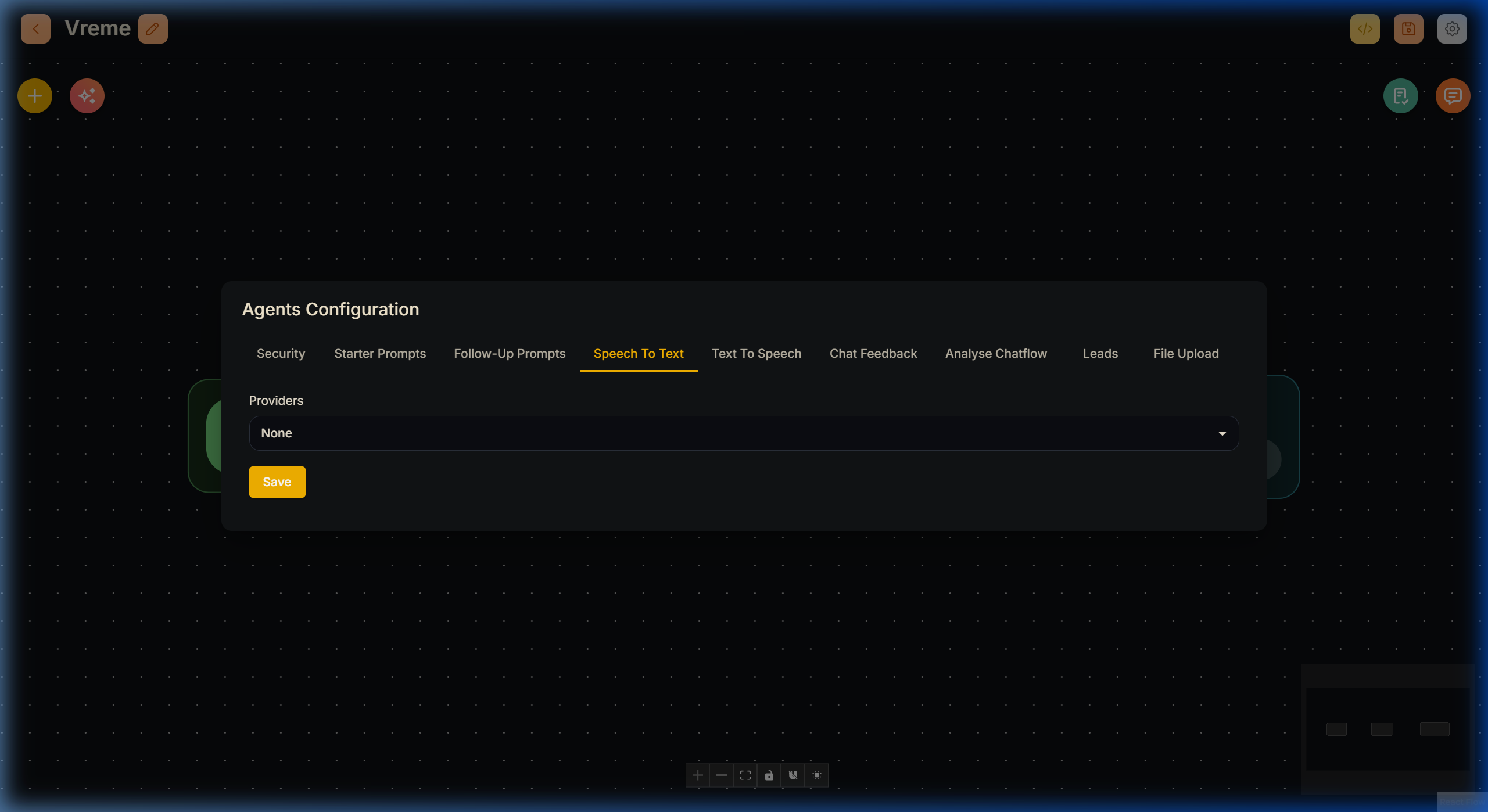
To upload audio recordings directly via the API:
Python
import requests
API_URL = "http://localhost:3000/api/v1/prediction/<Flowid>"

def query(payload):
    response = requests.post(API_URL, json=payload)
    return response.json()

output = query({
    "uploads": [
        {
            "data": "data:audio/webm;codecs=opus;base64,GkXf...", # base64 string
            "type": "audio",
            "name": "audio.wav",
            "mime": "audio/webm"
        }
    ]
})
Javascript
async function query(data) {
    const response = await fetch(
        "http://localhost:3000/api/v1/prediction/<Flowid>",
        {
            method: "POST",
            headers: {
                "Content-Type": "application/json"
            },
            body: JSON.stringify(data)
        }
    );
    return await response.json();
}

query({
    "uploads": [
        {
            "data": "data:audio/webm;codecs=opus;base64,GkXf...", // base64 string
            "type": "audio",
            "name": "audio.wav",
            "mime": "audio/webm"
        }
    ]
}).then((response) => console.log(response));
Files
You can upload documents and textual files in two distinct ways:
- Retrieval Augmented Generation (RAG) File Uploads
- Full File Uploads
When both options are enabled, full file uploads take precedence in the UI.
RAG File Uploads
Upload files on the fly directly into your vector store. This is ideal when you want to minimize token usage by only retrieving relevant chunks instead of providing the entire document in the prompt.
Prerequisites:
- You must include a Vector Store that supports file uploads in the Flow (e.g., Weaviate, Pinecone, Qdrant).
- Connect at least one Document Loader node to the vector store's document input.
- You can only turn on RAG file upload for one vector store at a time per flow.
Supported document loaders for on-the-fly RAG uploads include:
- PDF File
- CSV File
- Text File
- Docx File
- Json File
When a file is uploaded this way, Lyntaris tags it with the current chatId in its metadata. This ensures that the vector DB only searches within files associated with the user's specific conversational session (or files that don't have a chatId attached).
To do this with the API, it is a two-step process:
- Use the Vector Upsert API with
formDataandchatId:
Python
import requests

API_URL = "http://localhost:3000/api/v1/vector/upsert/<Flowid>"
form_data = {"files": ("document.pdf", open("document.pdf", "rb"))}
body_data = {"chatId": "session-123"}

response = requests.post(API_URL, files=form_data, data=body_data)
print(response.json())
Javascript
let formData = new FormData();
formData.append("files", input.files[0]);
formData.append("chatId", "session-123");

async function query(formData) {
    const response = await fetch("http://localhost:3000/api/v1/vector/upsert/<Flowid>", {
        method: "POST",
        body: formData
    });
    return await response.json();
}
query(formData).then((res) => console.log(res));
- Use the Prediction API with the
uploadsarray specifying typefile:rag:
Python
import requests
API_URL = "http://localhost:3000/api/v1/prediction/<Flowid>"

def query(payload):
    response = requests.post(API_URL, json=payload)
    return response.json()

output = query({
    "question": "What is the document about?",
    "chatId": "session-123", # Matches step 1
    "uploads": [
        {
            "data": "data:application/pdf;base64,TWFkYW...",
            "type": "file:rag",
            "name": "document.pdf",
            "mime": "application/pdf"
        }
    ]
})
Full File Uploads
Unlike RAG uploads, a Full File Upload parses the entire file and injects all of its text content directly into the LLM context window.
This is highly effective for tasks like summarizing complete documents or reasoning over structured data (like CSV tables) where RAG chunking might miss the broader context. Models like Gemini 1.5 Pro and Claude 3.5 Sonnet excel here due to their massive context windows.
To enable full file uploads, open the Flow Configuration menu, navigate to the File Upload tab, and toggle the setting:
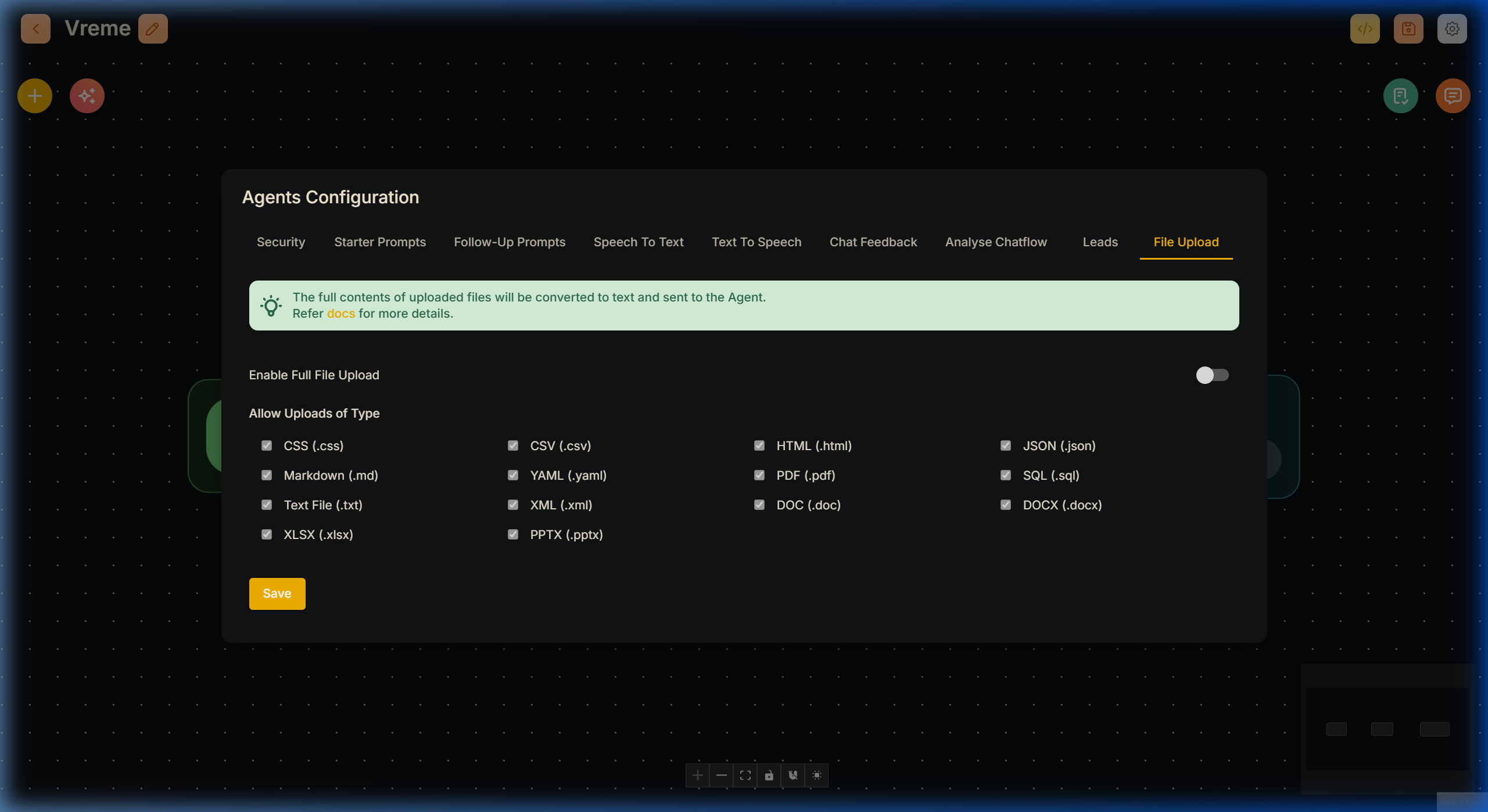
Once enabled, the file attachment button allows document uploads. Internally, a File Loader processes each file into raw text before submitting to the prompt.
API Example for Full File Upload:
Python
import requests
API_URL = "http://localhost:3000/api/v1/prediction/<Flowid>"

def query(payload):
    response = requests.post(API_URL, json=payload)
    return response.json()

output = query({
    "question": "Summarize the data.",
    "chatId": "session-123",
    "uploads": [
        {
            "data": "data:text/plain;base64,TWFkYWwcy4=",
            "type": "file:full", # Specifies that this is a full upload
            "name": "data.csv",
            "mime": "text/csv"
        }
    ]
})
When to use Full vs RAG Uploads
- Full File Upload: Best for summarization, complete data extraction, and structured files like spreadsheets. Sends the whole document to the LLM. May consume more tokens, but guarantees full context.
- RAG File Upload: Best for semantic search and Q&A on large documents where token costs could be high. Slower upfront due to vector upserting, but drastically reduces token usage per query since only relevant chunks are retrieved.