Sitemap & Web Pipeline
Open /sitemap in your Lyntaris Dashboard. This page functions as the Control Room for a domain’s knowledge base on disk.
Here, you configure which URLs (or local PDF paths) exist in your sitemap.xml, how each subtree is processed by the Data Pipeline (OCR, optimizations, AI artifacts), and manage any domain-specific prompt overrides.
[!NOTE] The page is built for one company deployment at a time: domain folders and
sitemap.xmlfiles live securely on server paths configured by your operator. You do not type raw server paths—the app automatically lists the domains discovered for your installation.
1. Global Settings & Overview
When you first open the /sitemap page, you'll see your Domains list, the Always Fresh Scheduler, and options for global vector ingest.
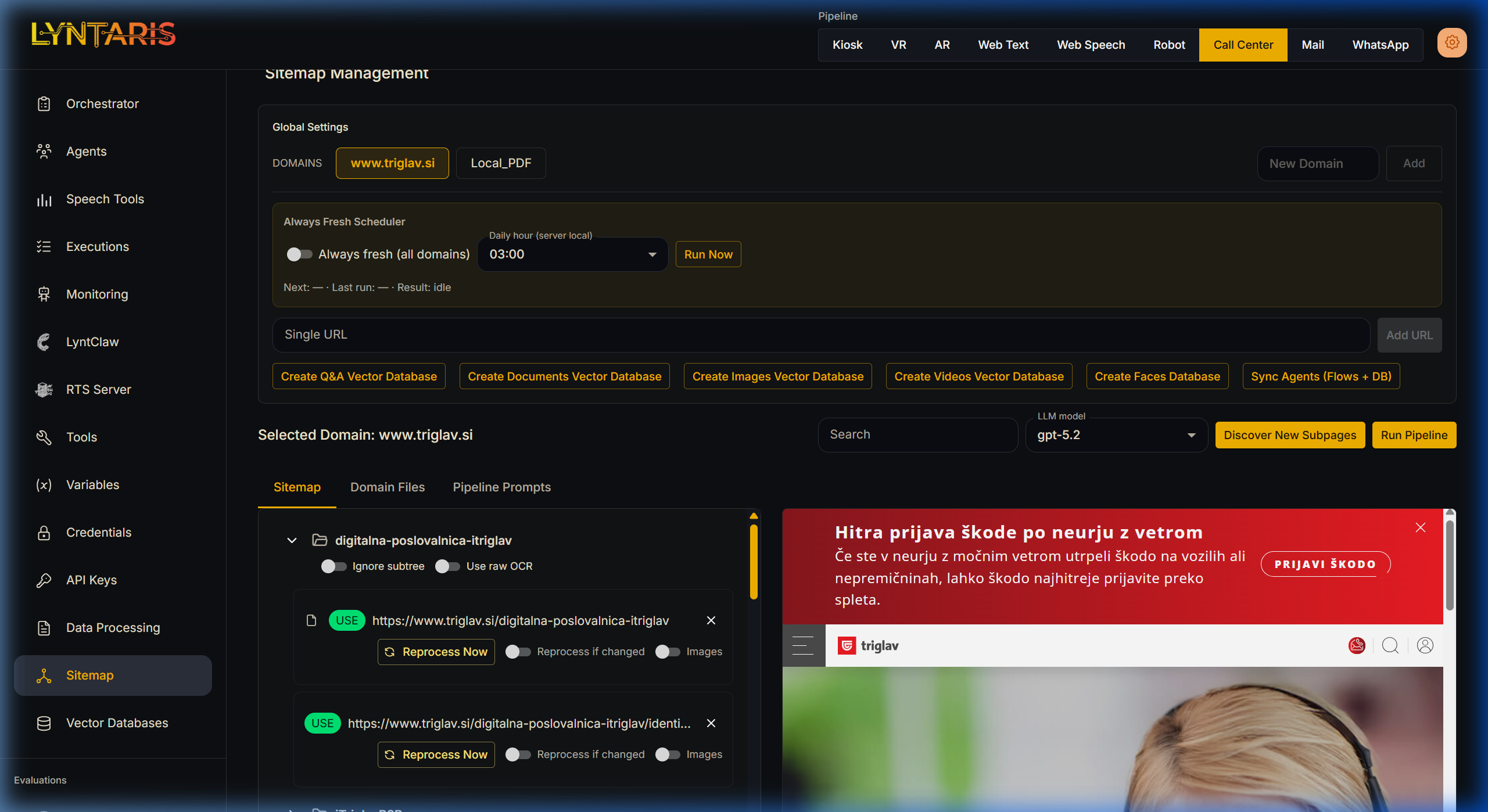
Domain Management
- Domain chips: Click to switch the active domain. Everything below the domains list applies only to the selected domain.
- New Domain: Creates a domain folder and an empty
sitemap.xmlon the backend.
Always Fresh Scheduler
- Always fresh (all domains): When enabled, the server runs a scheduled daily job (at your specified server local time) that crawls the site, checks for changes, and triggers the text optimization pipeline.
[!WARNING] The reserved
Local_PDFdomain is excluded from this automated schedule to prevent unnecessary thrashing of static offline documents.
Single URL / Local PDF overrides
- Website domains: Use Single URL + Add URL to append an exact URL to the selected domain’s sitemap.
Local_PDF: Use the PDF sitemap loc field to manually insert alocal-pdf:///folder/Document.pdfentry if you've uploaded a file directly to the backend.
2. Managing the Sitemap
The Sitemap tab is where you control individual URLs, ignore paths, and manage the pipeline behavior (such as skipping text optimization for clean PDFs).
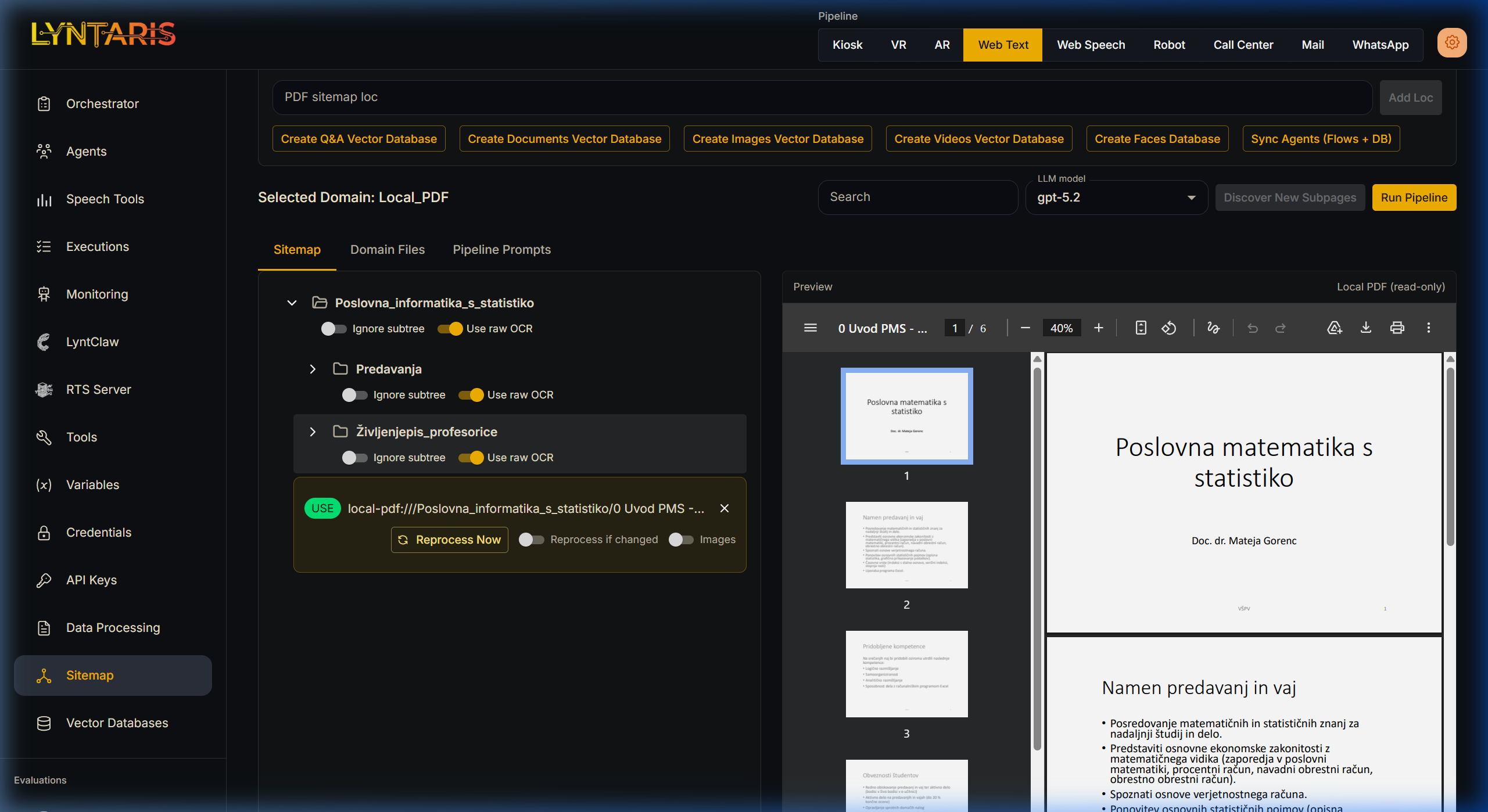
The left side displays a folder tree built from URL paths or local-pdf: paths. The right panel provides a live preview and the underlying XML data.
Subtree Controls (Folder Rows)
Each folder row contains toggles that recursively apply to every sitemap URL underneath it:
| Toggle | What it does |
|---|---|
| Ignore subtree | When ON, no fetching or processing occurs for these URLs. |
| Use raw OCR | When ON, every URL under this folder skips the GPT text optimization step. The backend copies the raw markdown directly to _Optimized.md. |
[!TIP] When to Use Raw OCR? Turn this ON for clean, structured PDFs (often in your
Local_PDFdomain) where the native extracted text is already perfect. Leave it OFF for noisy, web-rendered PDFs where the optimization step helps clean up garbage formatting.
Individual URL Controls
When you select a specific URL card, you have granular controls:
- Reprocess now: Forces the pipeline to re-run on this URL during the next execution.
- Reprocess if changed: Marks the URL as eligible for batch differential runs.
- Images: Requests visual/image extraction (if supported by your specific pipeline deployment).
3. Domain Files (Local Explorer)
The Domain Files tab provides an integrated file browser directly into your server's backend storage for the selected domain.
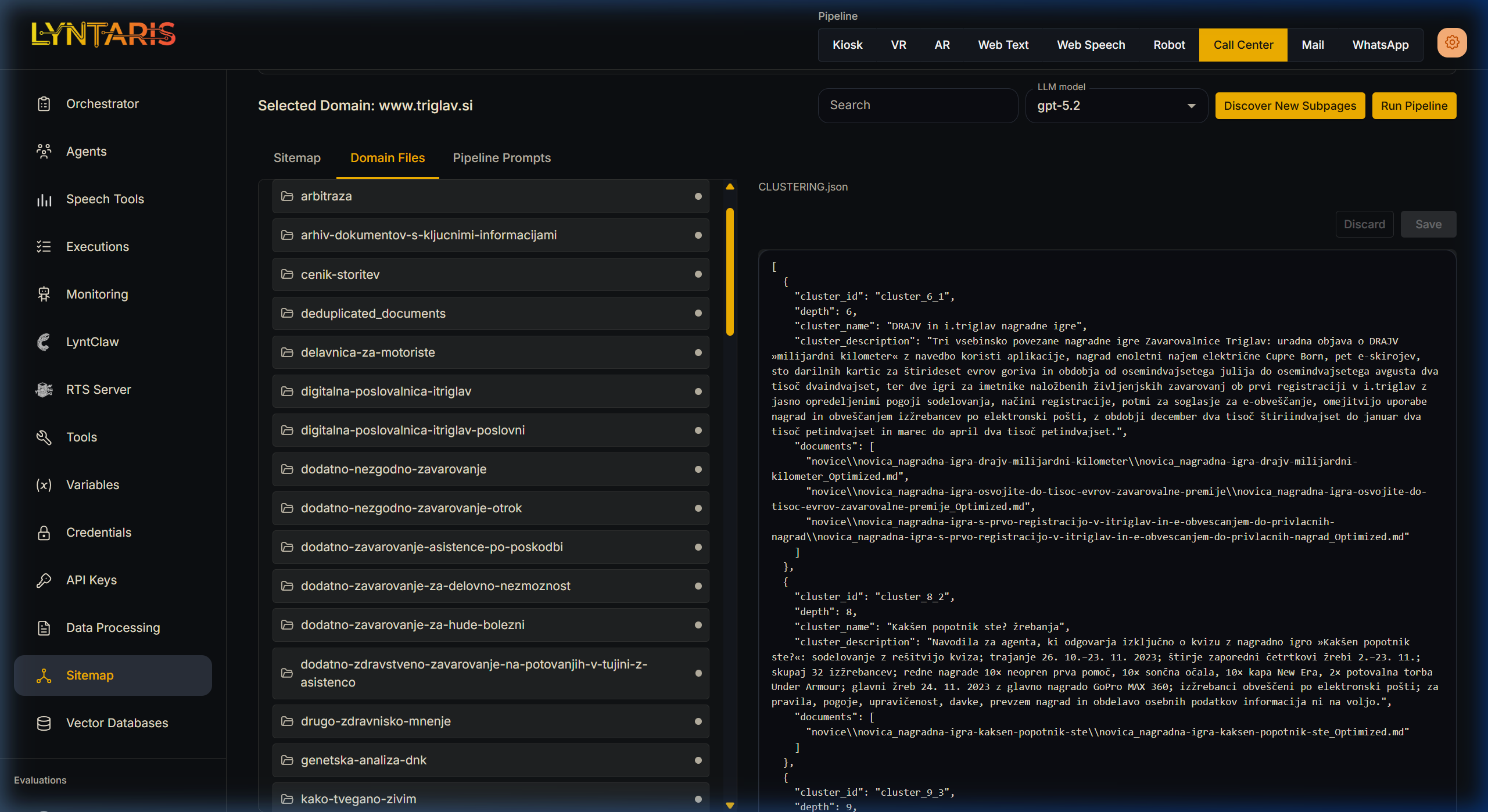
- Two-way Sync: Selecting a URL in the Sitemap tab and switching here will automatically open the folder containing that URL's parsed Markdown output.
- Direct Editing: Click any
.mdor.jsonfile to edit it directly in the browser. Fixing markdown here immediately affects what the next Vector Ingest will index! - PDF Uploads: When your domain is
Local_PDF, you can create folders and directly upload PDF documents (up to 100MB per file, 30 files at once).
4. Pipeline Prompts
Lyntaris allows you to tune the text templates controlling how the backend pipeline operates on a per-domain basis.
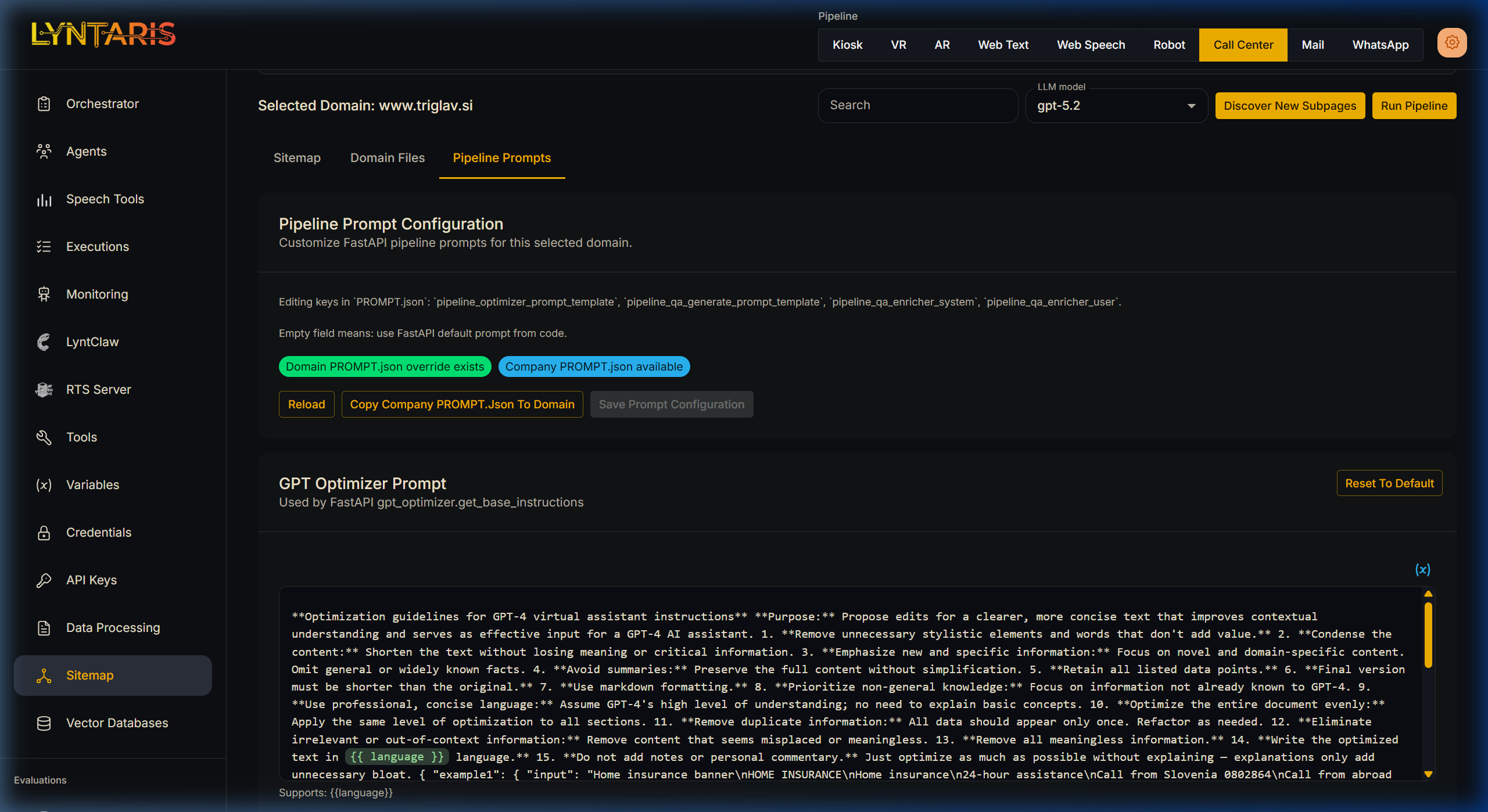
These configurations are stored in PROMPT.json. You can modify:
- Pipeline Optimizer Prompt: The instructions given to the LLM (e.g., GPT-4o) when cleaning up scraped HTML/PDFs.
- Q&A Generator Prompt: The system instructions for generating Q&A pairs from chunks.
[!TIP] Empty Field Behavior: An empty field means Lyntaris uses the built-in default prompts for that slot. You can click Copy company PROMPT.json to domain to copy existing company-wide defaults to your domain, enabling you to safely tweak specific rules without affecting other domains.
5. Authenticated websites (crawl cookies)
Some public sites only expose their full navigation after a login or consent flow. The backend sitemap crawl and discover-new-pages jobs run in a headless browser and plain HTTP session; without session cookies they may see only a login wall or an empty link graph.
[!NOTE] LyntClaw vs this flow: Logging in inside LyntClaw’s managed browser does not by itself update cookies for Sitemap / Always Fresh. Those crawls run in FastAPI. For gated public sites you still use the Unity operator WebView → FastAPI path below (see LyntClaw — browser vs knowledge-base crawling).
How Lyntaris handles this
- Your operator uses the Unity operator WebView (same company deployment as the kiosk) to complete login or cookie consent for the company website configured in your deployment (
default website/ domain in your Lyntaris config). - A small Unity component pushes the browser’s cookies to the FastAPI service. The server stores them in a shared cookie file on disk. The next Crawl / Discover / Always Fresh crawl steps reuse those cookies automatically.
- If your stack is configured with an ingestion secret, the cookie upload requires that same secret (HTTP header). Operators automating upload should follow Customer integration (HTTP API).
What you should do in the Dashboard
- You do not upload cookies from the
/sitemapUI. Continue to use Discover, Crawl, and Always Fresh as today; once cookies are on the server, those actions stay the same. - If crawls still look like “logged out” pages, confirm with your operator that they ran the Unity push shared cookies step after logging in on the operator browser, and that FastAPI was redeployed with the current stack (so the shared cookie volume is mounted).
Technical note (integrations): See Customer integration — Sitemap crawl cookies for the FastAPI endpoint, headers, and a minimal example. It is operator-only, not an end-user or public widget API.