Data Processing
The Data Processing suite is your central hub for transforming unstructured input (audio recordings, physical documents, live speech) into searchable, actionable data. You can find it by navigating to Data Processing in the left sidebar (/data-processing).
This area contains three primary modules built for distinct enterprise use cases:
- Transcripts: Upload massive audio files or record microphone input, transcribe using high-accuracy speech-to-text, and pump the text directly into Document DBs or Vector Databases for RAG.
- OCR: Batch process dense PDF documents and extract visual text.
- Translations: Perform real-time, bidirectional speak-to-translate sessions, or perfectly translate static audio/document files.
🎙️ Transcripts
The Transcripts tab allows you to ingest audio, configure language hints for difficult accents, and batch-transcribe files natively.
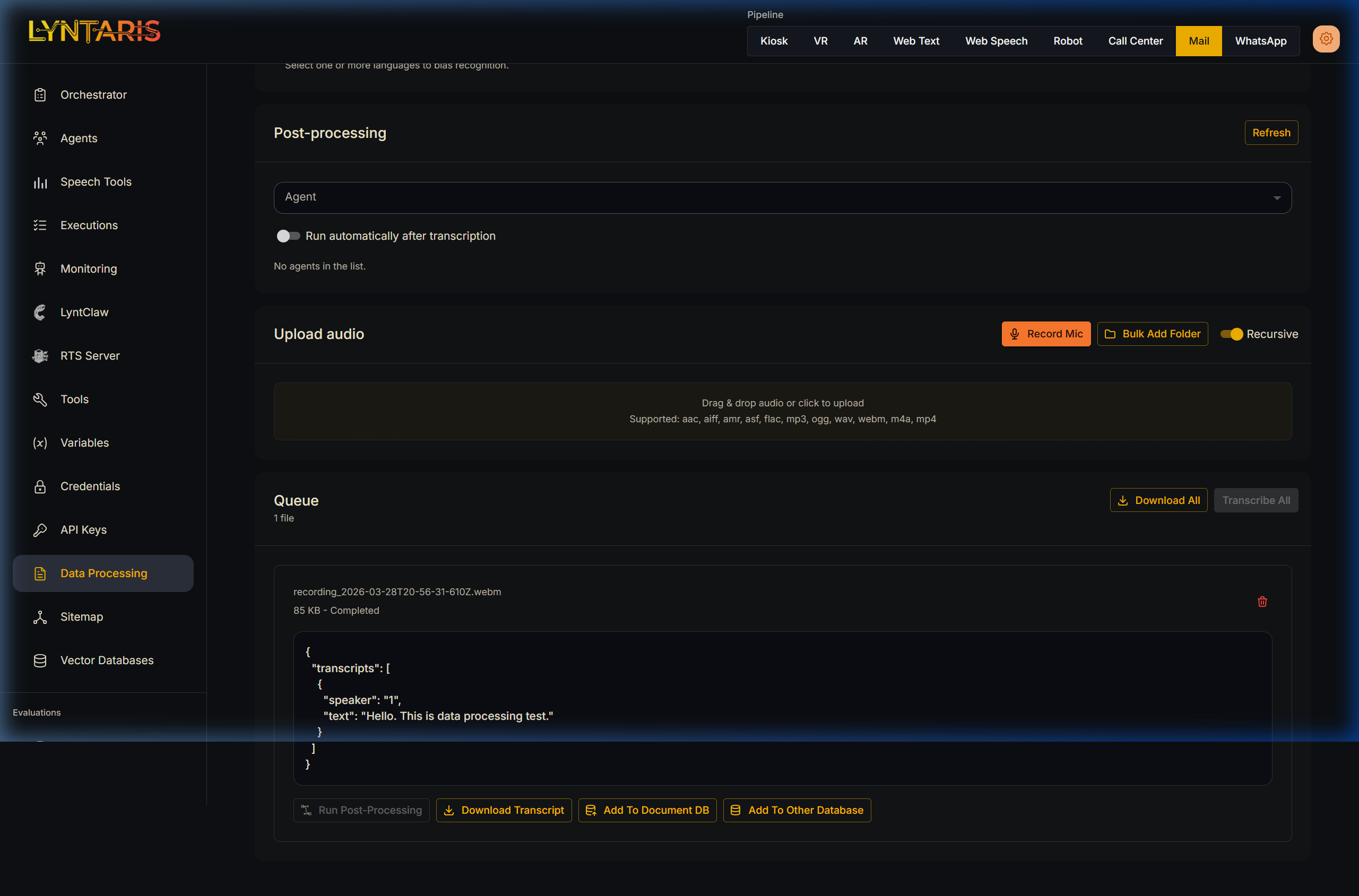
Ingestion Methods
- Upload Audio: Drag and drop audio files. Supported formats:
aac, aiff, amr, asf, flac, mp3, ogg, wav, webm, m4a, mp4. - Record Mic: Start recording live audio directly from your browser.
- Bulk Add Folder: Crucial for massive corporate archives. Point it at a directory, toggle Recursive, and Lyntaris will pull in every audio file found inside.
Queue and Database Workflows
Once a file is transcribed and the status is ready, you unlock a suite of powerful database export actions directly from the queue row:
- Add to Document DB: Available when the transcript contains a single speaker. This pipes the entire monologue directly into your primary configured Document Database.
- Add to Vector DB: Displayed elegantly when the engine detects diarized content (2 or more speakers). This sends the parsed conversation chunks toward your Vector Storage for advanced multi-speaker RAG querying later.
- Post-Processing: Engage an AI Agent to restructure the transcript for you (see the Agent Post-Processing section below).
🤖 Agent Post-Processing (Crucial Feature)
Instead of just downloading raw text, Lyntaris allows you to plug your transcripts and OCR outputs directly into an AI Agent.
For example, when a 1-hour board meeting transcript finishes, you can automatically run an Agent to extract action items, summarize key decisions, and format the output as structured JSON.
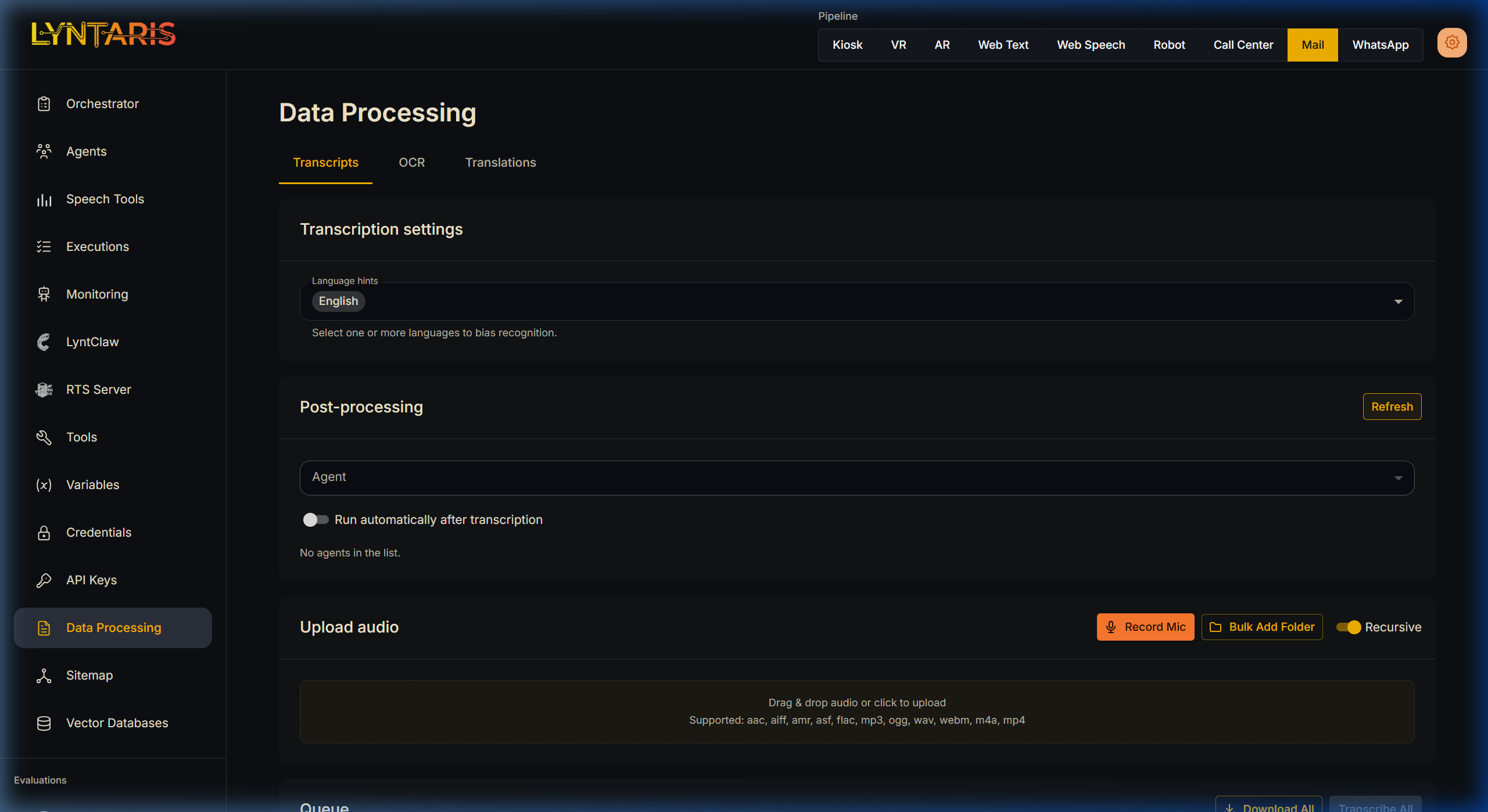
How to use Post-Processing:
- Under the Post-processing card, open the dropdown and select your target Agent.
- Toggle Run automatically after transcription/OCR if you want the Agent to fire instantly the moment a file finishes processing.
- Click Run post-processing manually on any completed queue item.
Info: Why is my Agent dropdown empty "No agents in the list"?
Lyntaris requires you to explicitly grant Agents permission to handle data processing tasks. To fix this:
- Navigate to the Agents tab in the sidebar.
- Find the Agent you want to use (e.g., "Meeting Summarizer", "Receipt JSON Extractor").
- Add the structural tag
DataProcessingto the Agent's Group settings.- Return to the Data Processing page and click Refresh in the Post-Processing card. Your Agent will now be available.
(Note: Extremely long inputs are cleanly truncated up to 18,000 characters before hitting the Agent to prevent context token overflow.)
📄 Vision OCR
The OCR (Optical Character Recognition) tab provides the exact same robust batch-processing UI, but specifically engineered for PDFs.
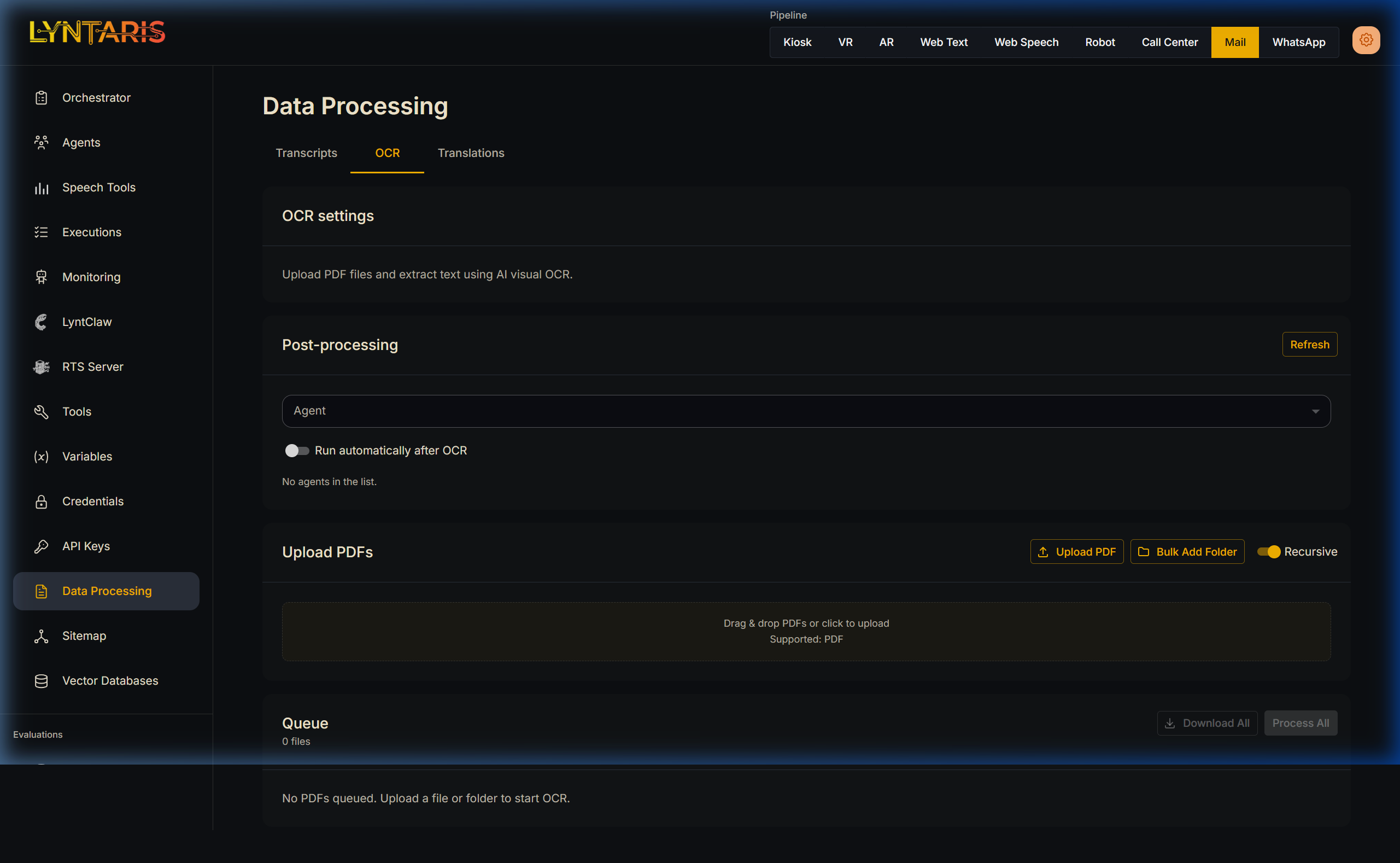
Upload scanned corporate documents, manuals, or receipts. The system extracts the text using deep learning vision models. Once extraction completes, you can immediately fire an Agent to summarize the document, or push the entire document graph sequentially into your Vector DB for instant searchability.
🌐 Translations
Lyntaris is built to cross language barriers seamlessly. The translation suite provides specialized interfaces for various corporate needs.
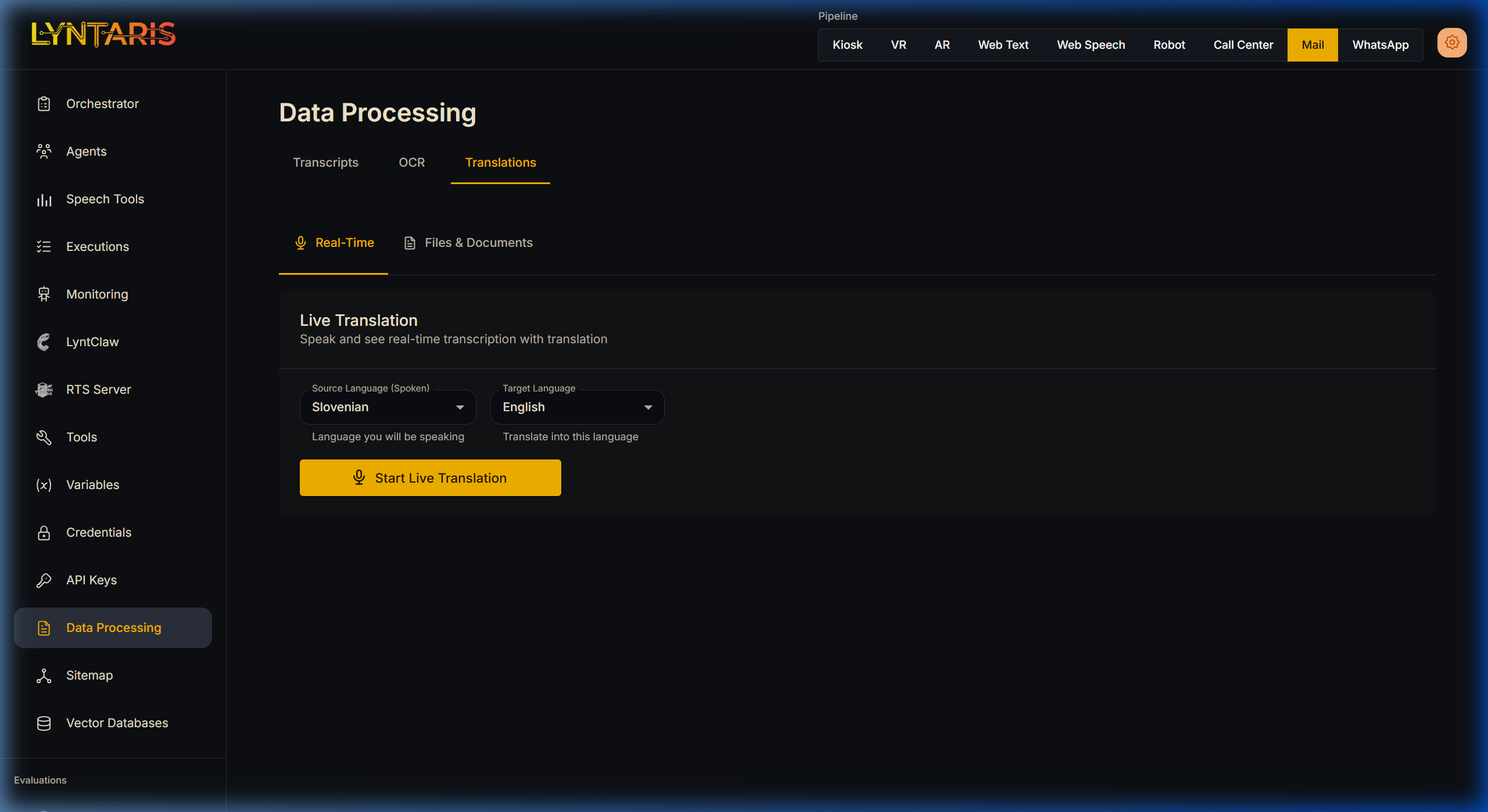
1. Live Translation
This creates a session-based bidirectional translator.
- Simply select your spoken Source Language and your desired Target Language.
- Click Start Live Translation and speak. Lyntaris will provide a live transcript of what you said alongside the immediate translation. This is highly effective for client meetings, kiosks, or support desk scenarios.
2. Files & Documents Translation
Just need an old PDF translated?
- Audio Translation: Upload an audio file. Lyntaris will perform STT, give you the source Transcript, and the translated document simultaneously.
- Document Translation: Upload a PDF. Lyntaris performs OCR extraction and delivers a fully translated rendition of the document text.
Access and Security
Data Processing tools consume significant processing power. If you are met with "Permission Denied" errors or cannot access the /data-processing route, your account lacks the necessary dataProcessing:process or dataProcessing:view access control levels. Contact your Lyntaris Workspace Administrator to have your Role upgraded.