Credentials
The Credentials page acts as the central vault for connecting your Lyntaris agents to third-party services like OpenAI, Azure, Telnyx, or Google.
Because Lyntaris is deployed physically, the Credentials architecture operates differently than a standard SaaS platform.
🔒 Shared Credentials (Auto-Generated)
When you first open the Credentials page, you will likely see a list of pre-configured keys labeled Shared OpenAI, Shared Azure Speech, etc.
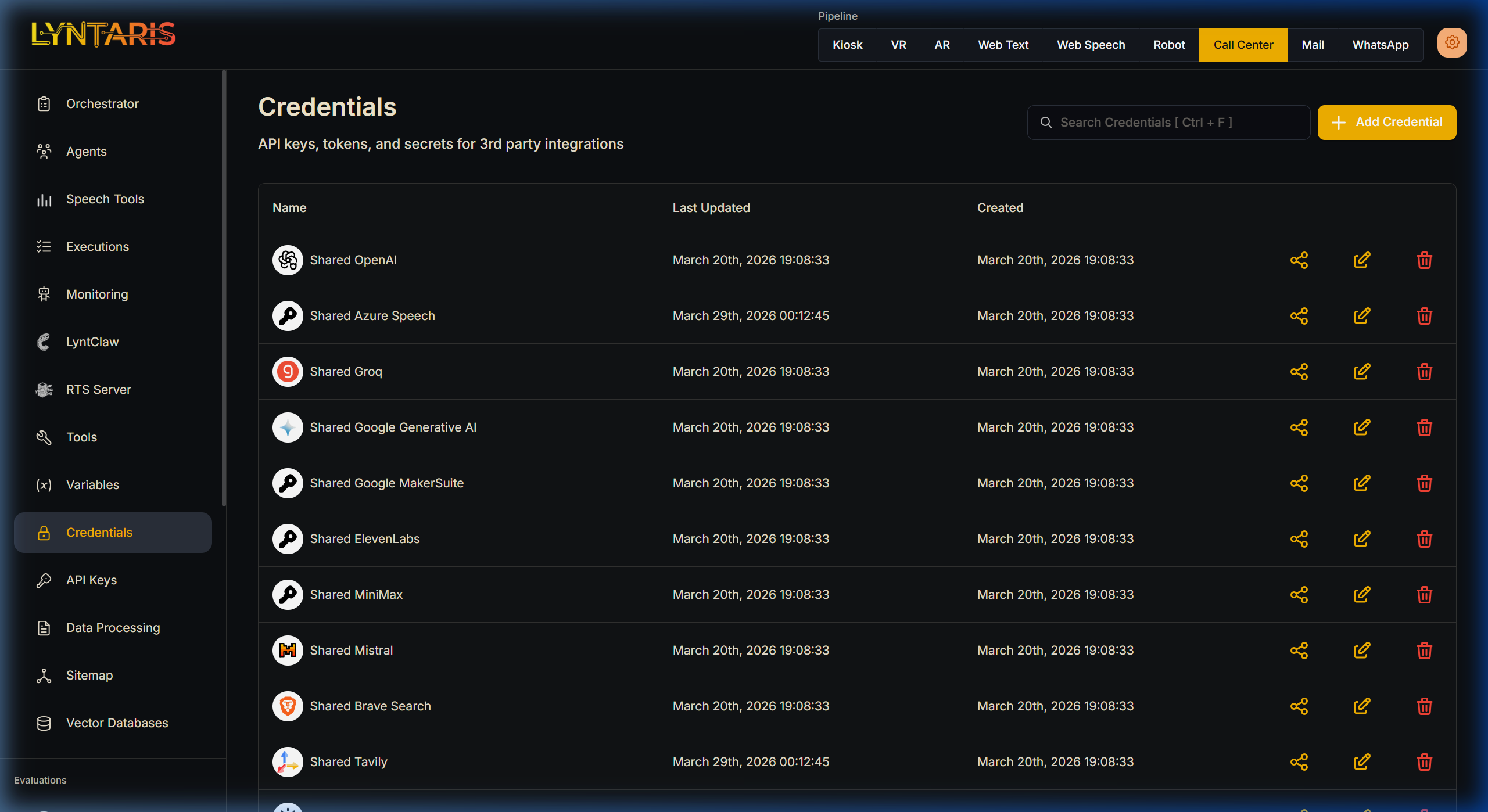
You do not need to generate these or paste your keys manually. Lyntaris uses a hybrid model: keys you configure in the Lyntaris deployment app (Unity Editor) are synchronized to the server when you run Sync Everything, and the platform exposes them as Shared Credentials in Flowise. Exact wiring and file locations are documented for integration engineers alongside your Lyntaris deployment sources, not duplicated in this user guide.
Flowise reads this .env file at startup and exposes them globally to all pipelines as Shared Credentials. Whenever you drag a new LangChain Model node into the Agent Canvas, the "Connect Credential" dropdown will automatically default to the Shared variant.
🔑 Custom Credentials (Pipeline Scoped)
While Shared Credentials are the backbone of the application, there are scenarios where you need granular control—such as generating a unique CRM API key strictly for the Call Center pipeline without exposing it to the Kiosk.
By utilizing the top-right Pipeline Selector, Lyntaris allows you to create strictly scoped API keys.
- Select your target pipeline (e.g., Kiosk) from the header.
- Click Add Credential in the top right.
- Choose your provider (e.g., Anthropic, PostgreSQL, Stripe) from the grid.
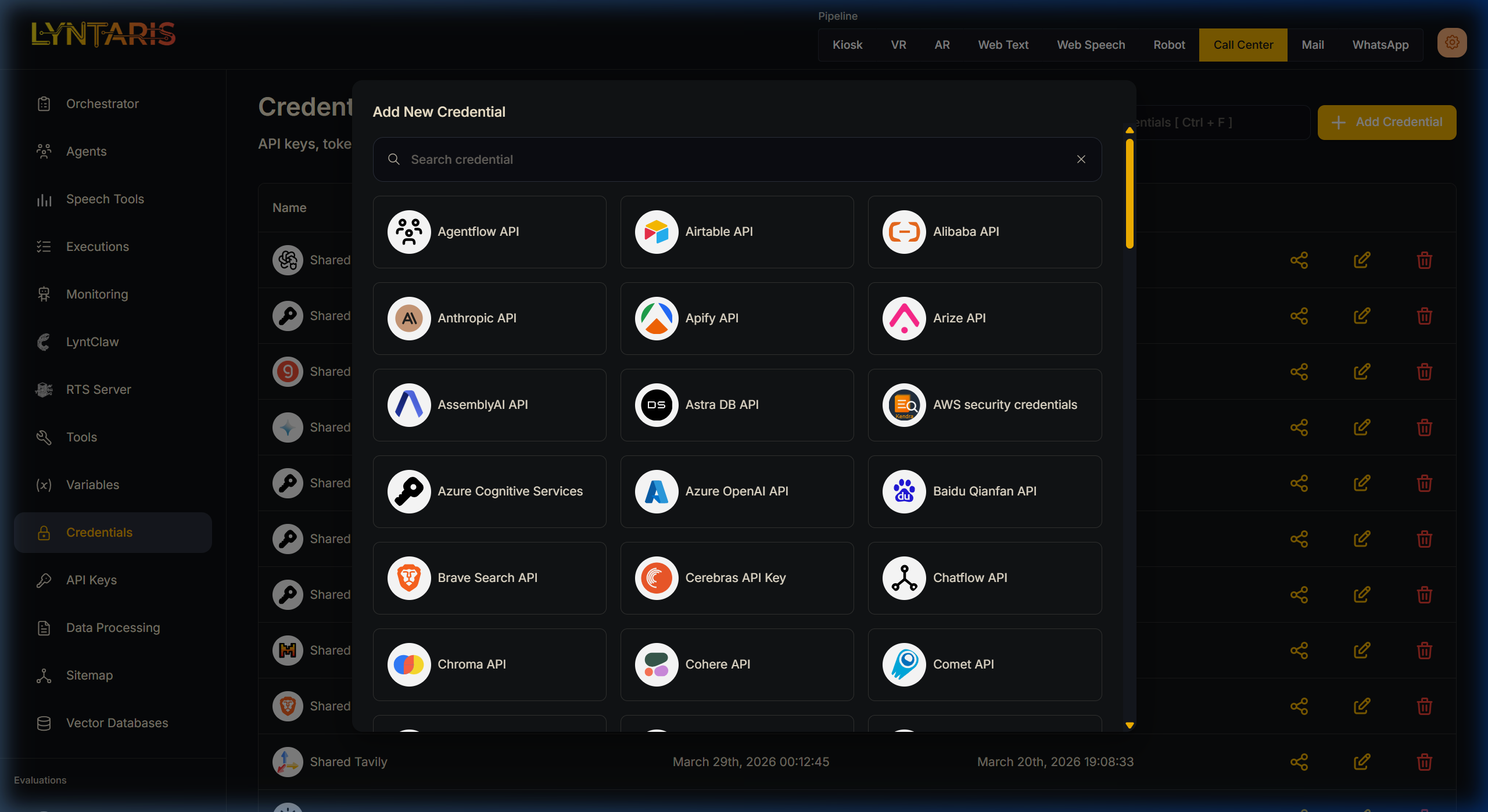
- Paste your secure token and name it (e.g.,
Kiosk-Specific-Anthropic).
When an Agent node executes inside the Kiosk pipeline, it will now have access to this new Credential. However, if you switch your Orchestrator or Agent Canvas to the Web Speech pipeline, that credential will be completely hidden and inaccessible to the LLM.