Evaluations
Evaluations help you monitor and scientifically measure the performance of your Lyntaris application. On a high level, an evaluation is a process that takes a set of inputs and corresponding outputs from your Agent workflow, and generates objective scores. These scores can be derived by comparing outputs to reference results, such as through string matching, numeric comparison, or even leveraging another LLM as a judge.
These evaluations are conducted using Datasets and Evaluators. You can find these options at the bottom of the left navigation sidebar in Lyntaris.
Datasets
Datasets are the collections of test inputs that will be used to run your Agent, along with the corresponding "gold standard" outputs for comparison. You can add the input and anticipated output manually, or upload a CSV file with 2 columns: Input and Output.
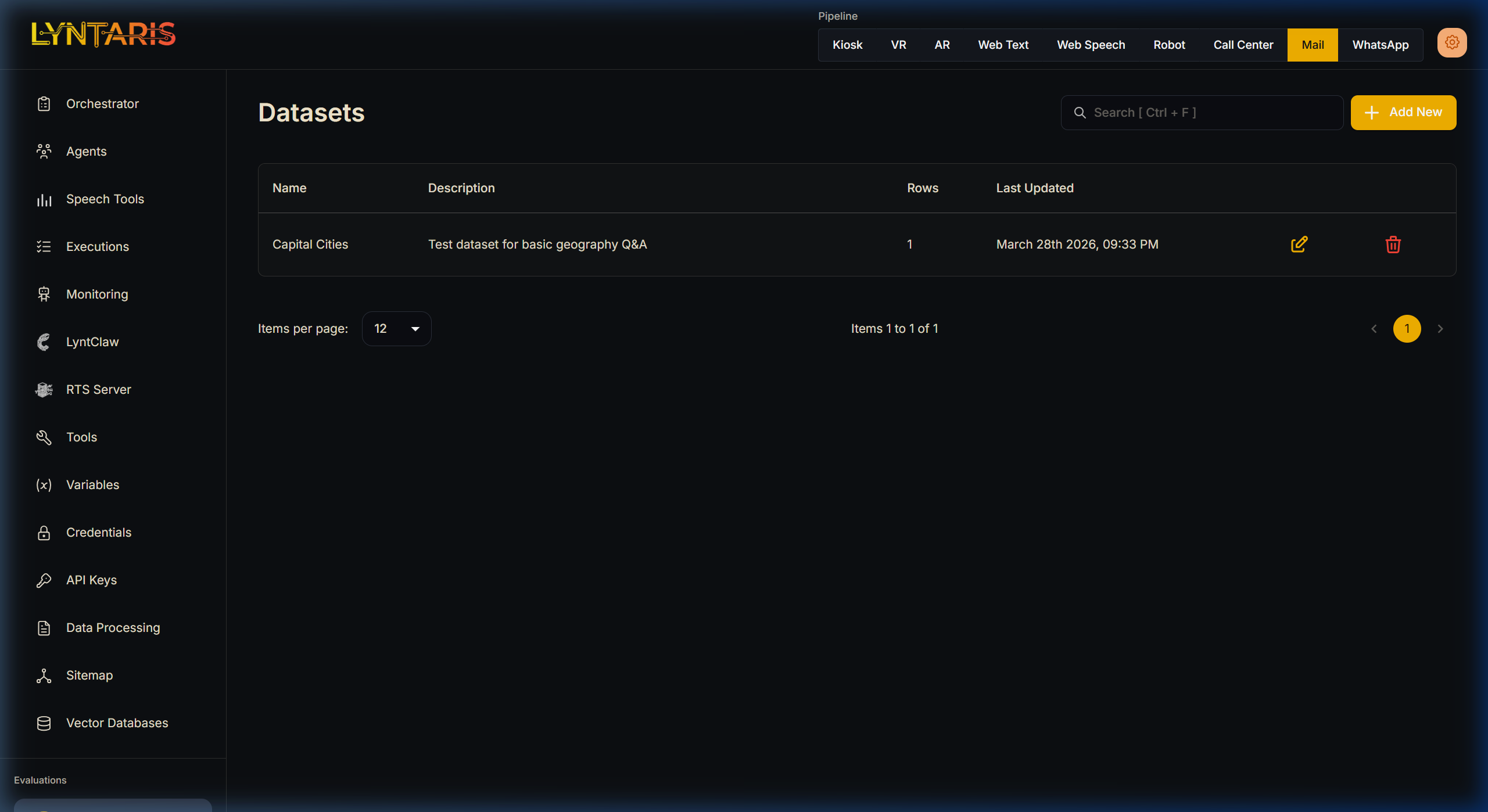
| Input | Output |
|---|---|
| What is the capital of UK | Capital of UK is London |
| How many days are there in a year | There are 365 days in a year |
Evaluators
Evaluators act like unit tests for your AI. During an evaluation, the inputs from your Datasets are run through the selected workflows, and the resulting outputs are graded using your selected Evaluators.
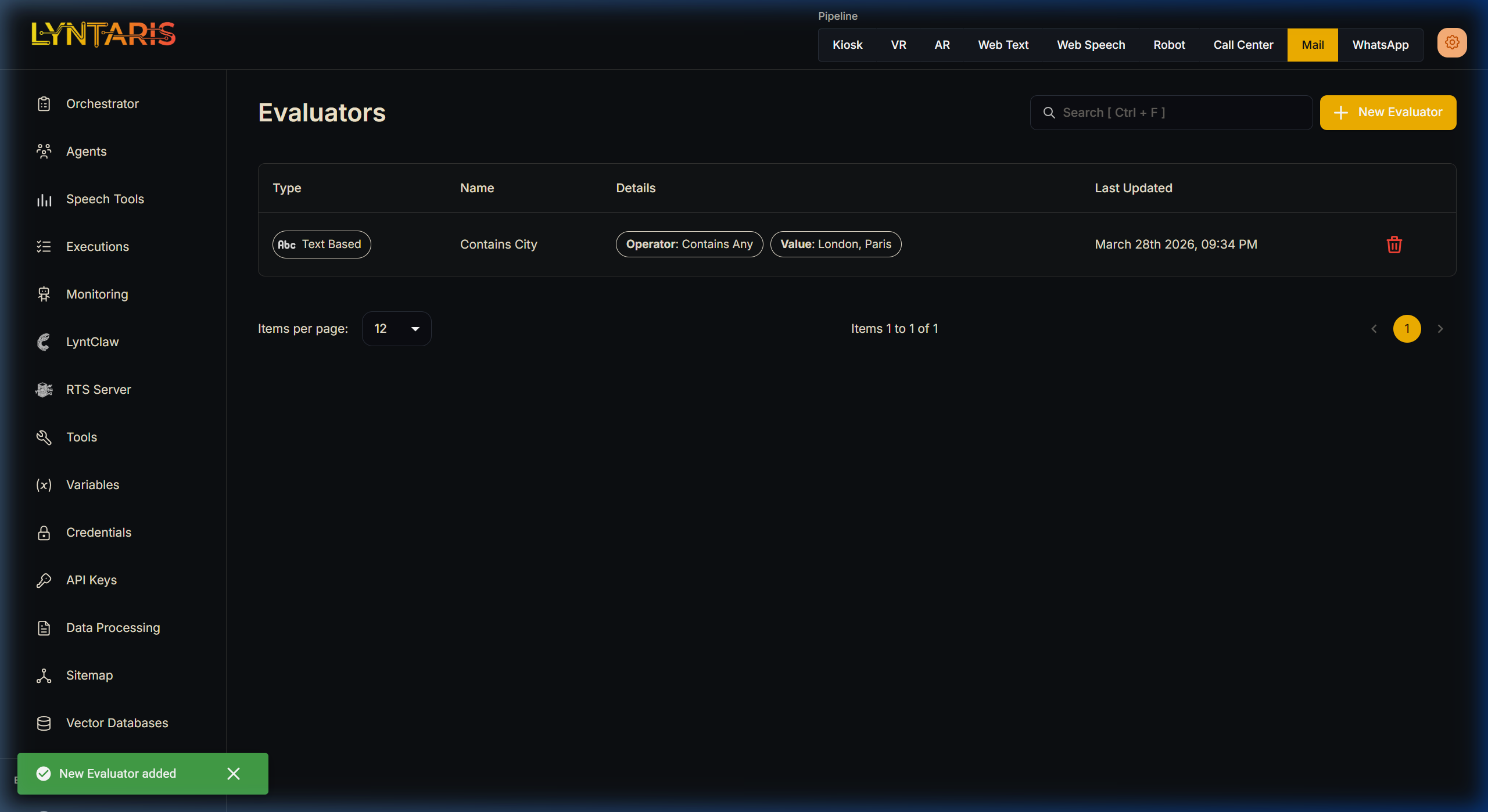
There are 3 main types of evaluators:
Text Based: String-based constraint checking:
- Contains Any
- Contains All
- Does Not Contains Any
- Does Not Contains All
- Starts With
- Does Not Starts With
Numeric Based: Telemetry and constraints checking based on numbers:
- Total Tokens
- Prompt Tokens
- Completion Tokens
- API Latency
- LLM Latency
- Output Characters Length
LLM Based: Using a powerful LLM (like GPT-4o) to grade the output:
- Hallucination Checking
- Correctness and Relevance Grading
Running Evaluations
Now that we have Datasets and Evaluators prepared, we can start running an evaluation sweep across our Agents.
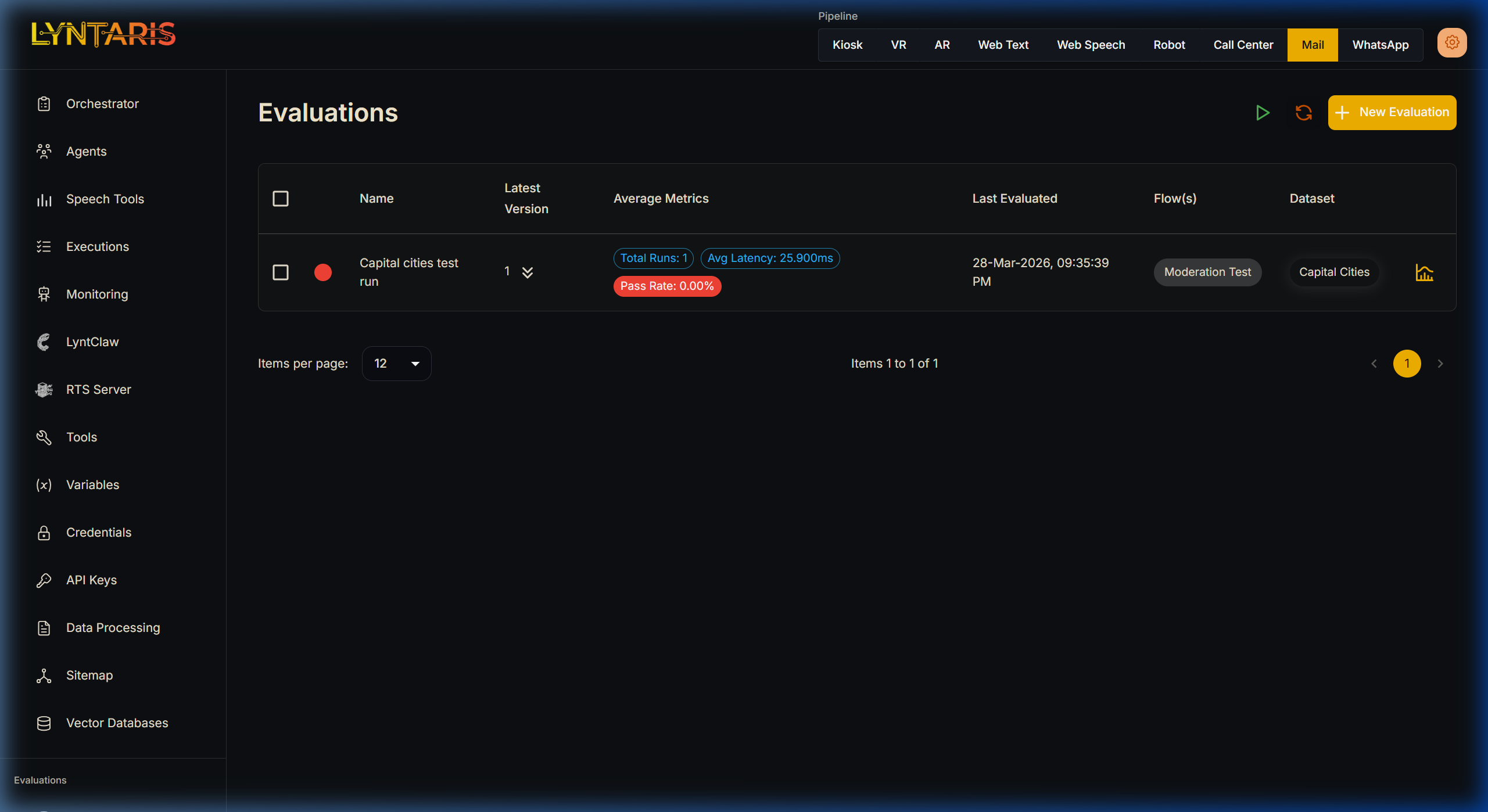
Select Dataset and Flow: Select the dataset and the specific Agent workflow to evaluate. You can select multiple datasets and flows at once. For example, if Dataset A has 10 inputs, and you select 2 flows to test, a total of 20 outputs will be produced and evaluated.
Select the Evaluators: Choose which criteria you want to grade the Agent on (e.g., Did it contain specific words? Did it respond under 2000ms? Was the answer hallucination-free?).
Start Evaluation: Execute the run. Lyntaris will systematically test every input against the Agent.
Review Results: Once completed, click the graph icon next to the evaluation run to view the detailed BI dashboard.
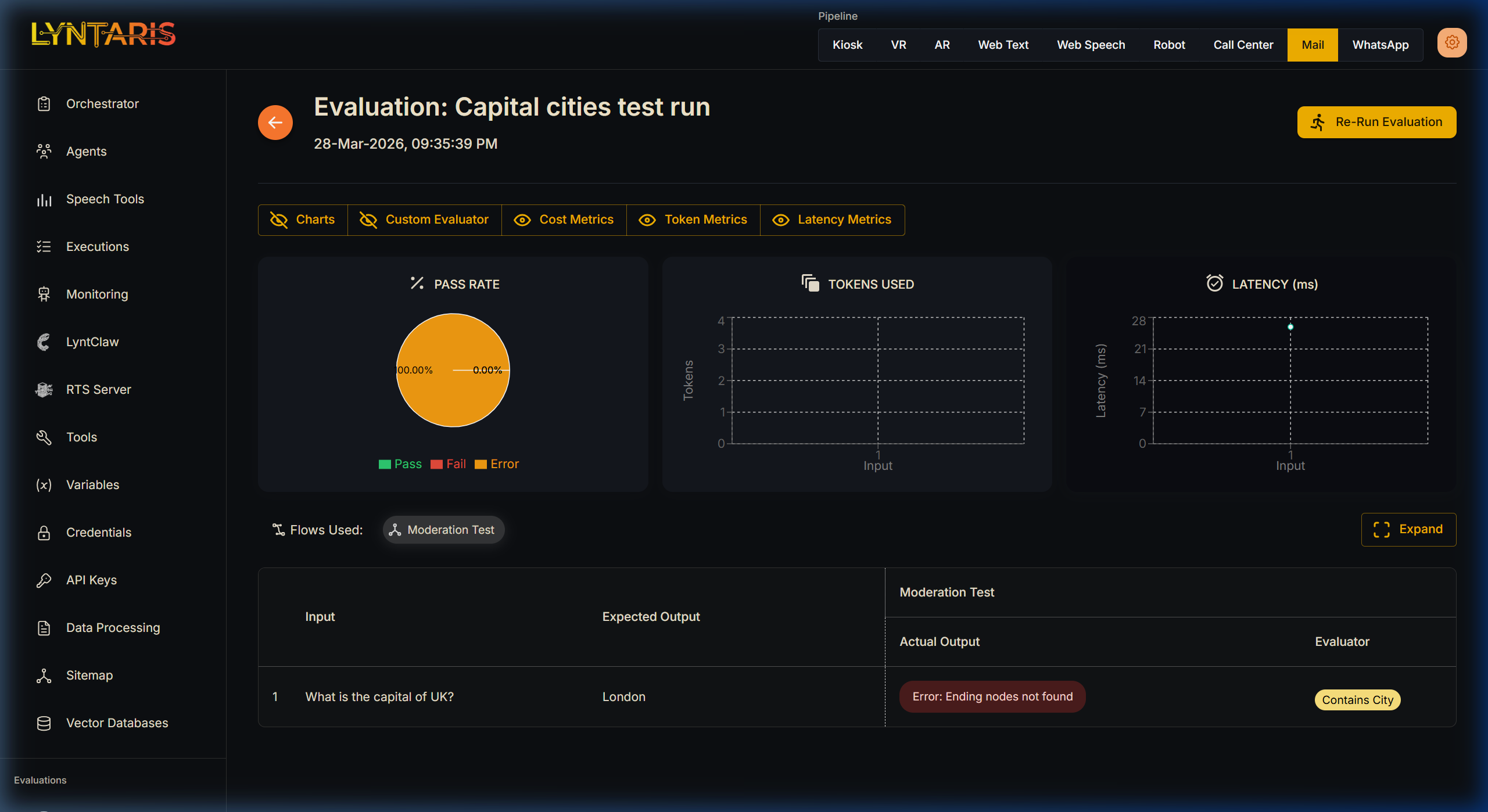
The detailed evaluation view provides comprehensive charts:
- Pass/Fail Rate across all test cases.
- Token Usage (Average prompt and completion token consumption).
- Latency (Average response time).
Below the charts, a detailed table reveals the exact grade for every single execution, allowing you to instantly identify which specific questions your Agent struggled to answer correctly.
Re-running Evaluations
When the core Agent design or prompts have been updated, a warning message will be shown next to your old evaluation runs indicating that the flow has changed.
You can instantly re-run the same evaluation against the newly updated flow using the Re-Run Evaluation button at the top right corner. This allows you to easily track metric improvements and visually compare the results from different versions of your Agent to prove safety and performance enhancements before deploying to production.