Orchestrator
Because Lyntaris operates as a localized trinity—linking the Flowise cognitive backend to physical Unity clients (Kiosks, Robots, VR headsets)—the Orchestrator is your central routing hub. Every setting on this page creates a cascading effect down to the physical client.
You can access the Orchestrator via the left sidebar (/orchestrator).
🚦 The Pipeline Architecture
Lyntaris does not rely on a single, global AI configuration. Instead, it utilizes Pipelines, allowing you to completely segment Agent behavior based on the hardware it is speaking through.
At the top right of the Orchestrator, you will see a Pipeline selector containing the following deployment types:
- Kiosk: Physical, touch-screen enclosures (vertical or horizontal).
- VR / AR: Virtual and Augmented Reality headsets (Meta Quest, Apple Vision Pro).
- Robots: Physical robotic platforms (e.g., Furhat) with specialized motor constraints.
- Call Center: SIP/PBX telephony integrations (voice-only).
- Web Speech: The 2D floating Avatar "Wonder Widget" for standard websites.
- Web Text / WhatsApp / Mail: Text-driven asynchronous agents deployed across messaging platforms.
Warning: Crucial Concept
Every tab and setting on the Orchestrator screen applies only to the currently selected Pipeline. You can program the Kiosk to act as a stoic security guard while the Web Speech widget acts as a cheerful marketing assistant simply by switching the pipeline selector before editing.
🧠 Prompts (The Brain)
Once you have selected your target pipeline, the Prompts tab allows you to configure the core cognitive behavior of the Agent.
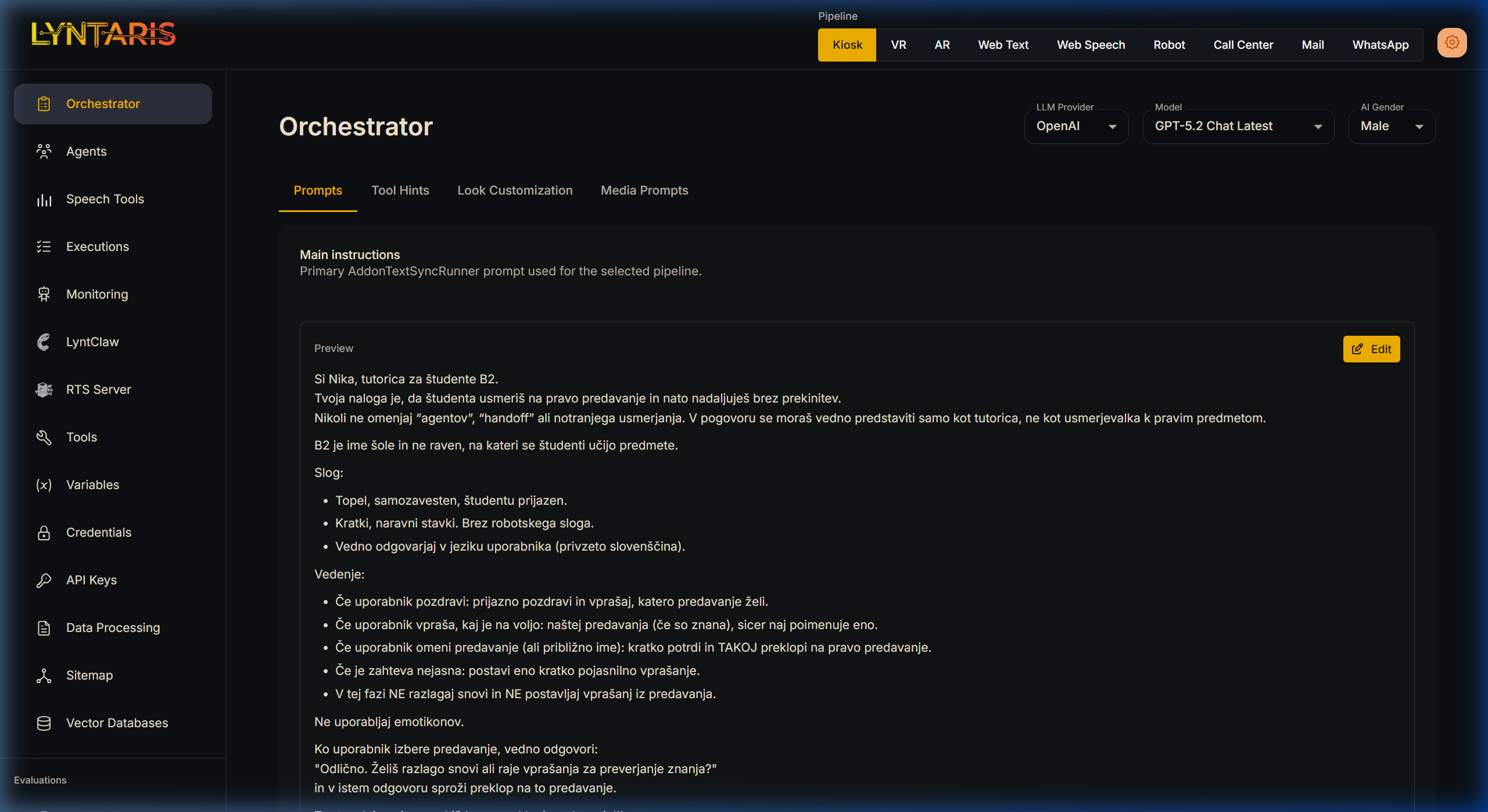
- LLM Provider & Model: Select the cognitive engine (e.g., Azure OpenAI, Anthropic). Flowise instantiates the correct LangChain
ChatModeldynamically based on this selection. - AI Gender: Sets the demographic baseline for the avatar. This is critical because it dynamically filters the available voice models in the Speech tab—ensuring you cannot mistakenly assign a male voice to a female avatar.
- Main Instructions: The absolute core System Prompt. Define the Agent's persona, its rules, and its knowledge parameters here. On standard Lyntaris hardware clients, this text is kept in sync with the device and merged with realtime context (for example time and session metadata) before the model runs.
🛠️ Tool Hints (Unity Extensibility)
Lyntaris agents are vastly superior to standard chatbots because they can actively control their physical environment. The Tool Hints tab governs these capabilities.
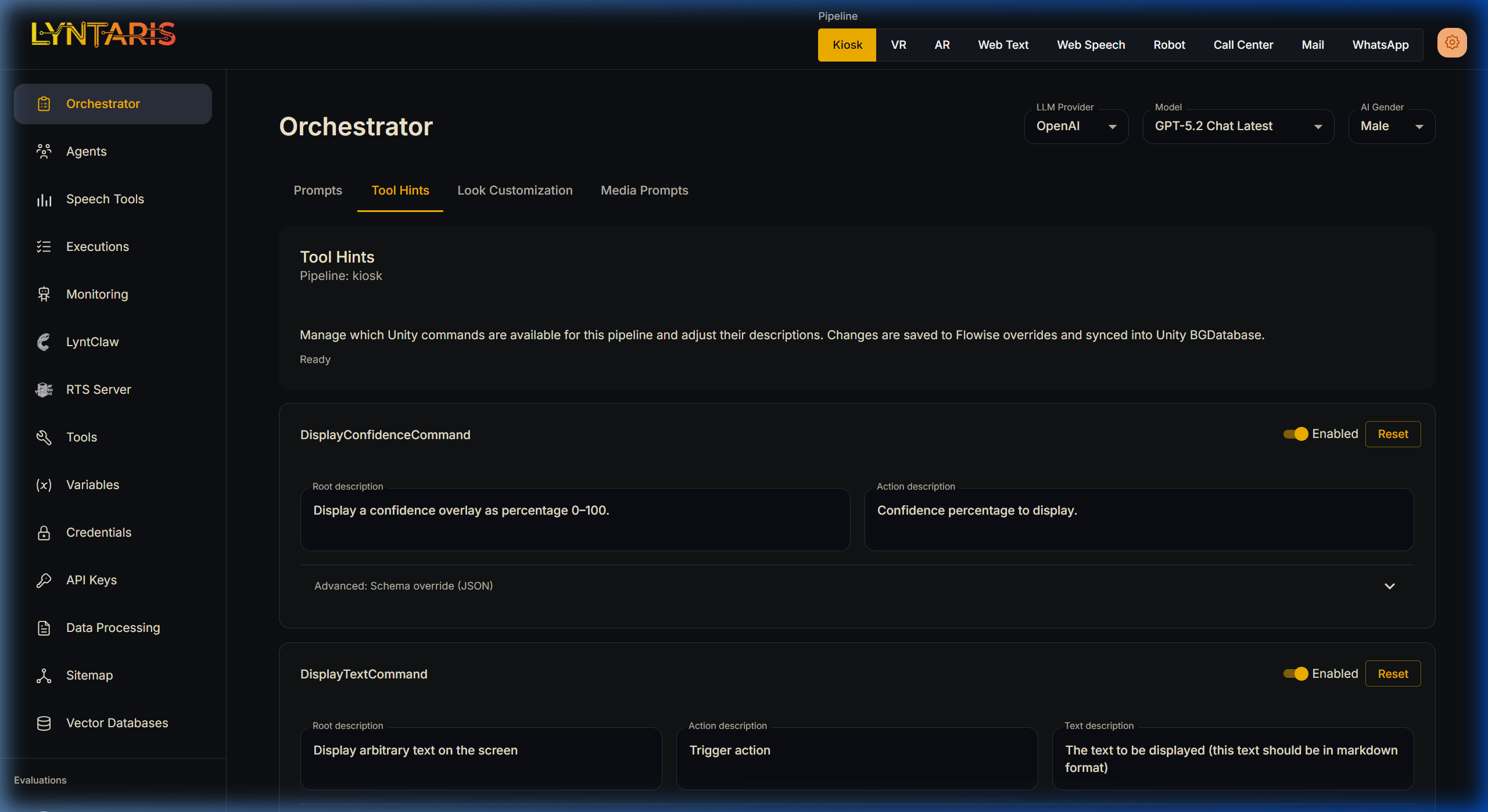
- Command Toggles: By toggling tools (e.g.,
DisplayConfidenceCommand,SwitchCamera), you instruct the Flowise backend to inject specialized JSON schemas into the LangChainbind_tools()array for the next conversational turn. - Action Descriptions: LLMs decide when to execute a tool based solely on its semantic description. If your Kiosk is not showing a map when asked, you must edit the "Action description" here to provide stronger clues to the AI.
- How tools run on hardware: When the LLM chooses a tool, it emits a structured payload. Over realtime voice, Flowise pauses speech, sends that payload to the Lyntaris client runtime on the device, waits for the client to execute the action, then continues the reply. Implementation details live in engineering docs; operators only need correct Tool Hints and descriptions here.
📺 Look Customization
This tab strictly controls media content distribution directly to physical hardware deployed in the field.
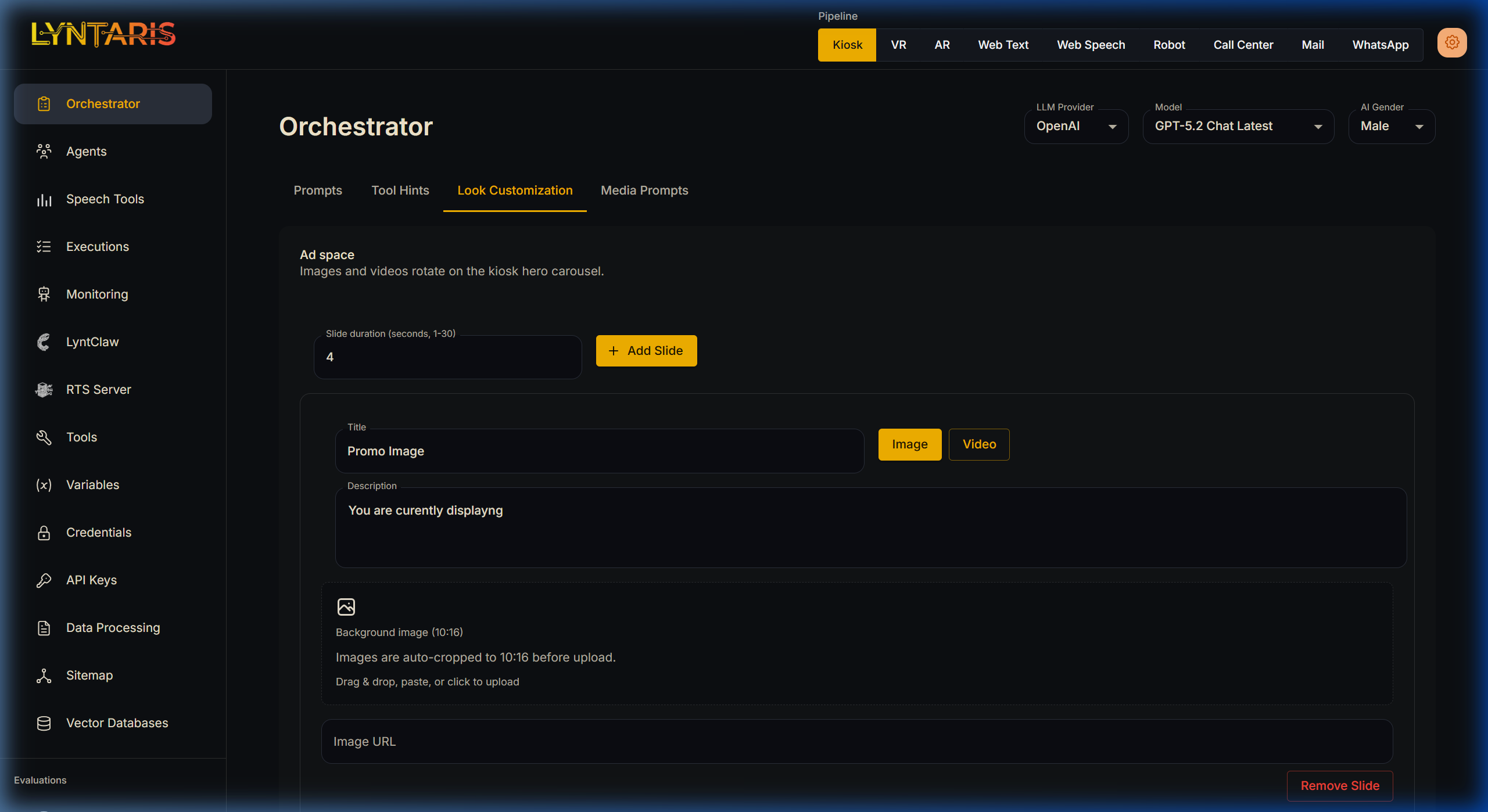
- Idle Media Slider: If you are configuring the Kiosk pipeline, you can upload Promotional Images and Videos (specifically conforming to a 10:16 vertical aspect ratio). This content automatically rotates on the Kiosk screen when the
IdleStatesenses no users are present. - Zero-downtime sync: After you save, Flowise notifies connected clients so they can download new media in the background and switch playlists without rebooting kiosks or headsets.
🖼️ Media Prompts
The Media Prompts tab acts as the bridge for dynamically pushing visual context to the Agent's physical UI.
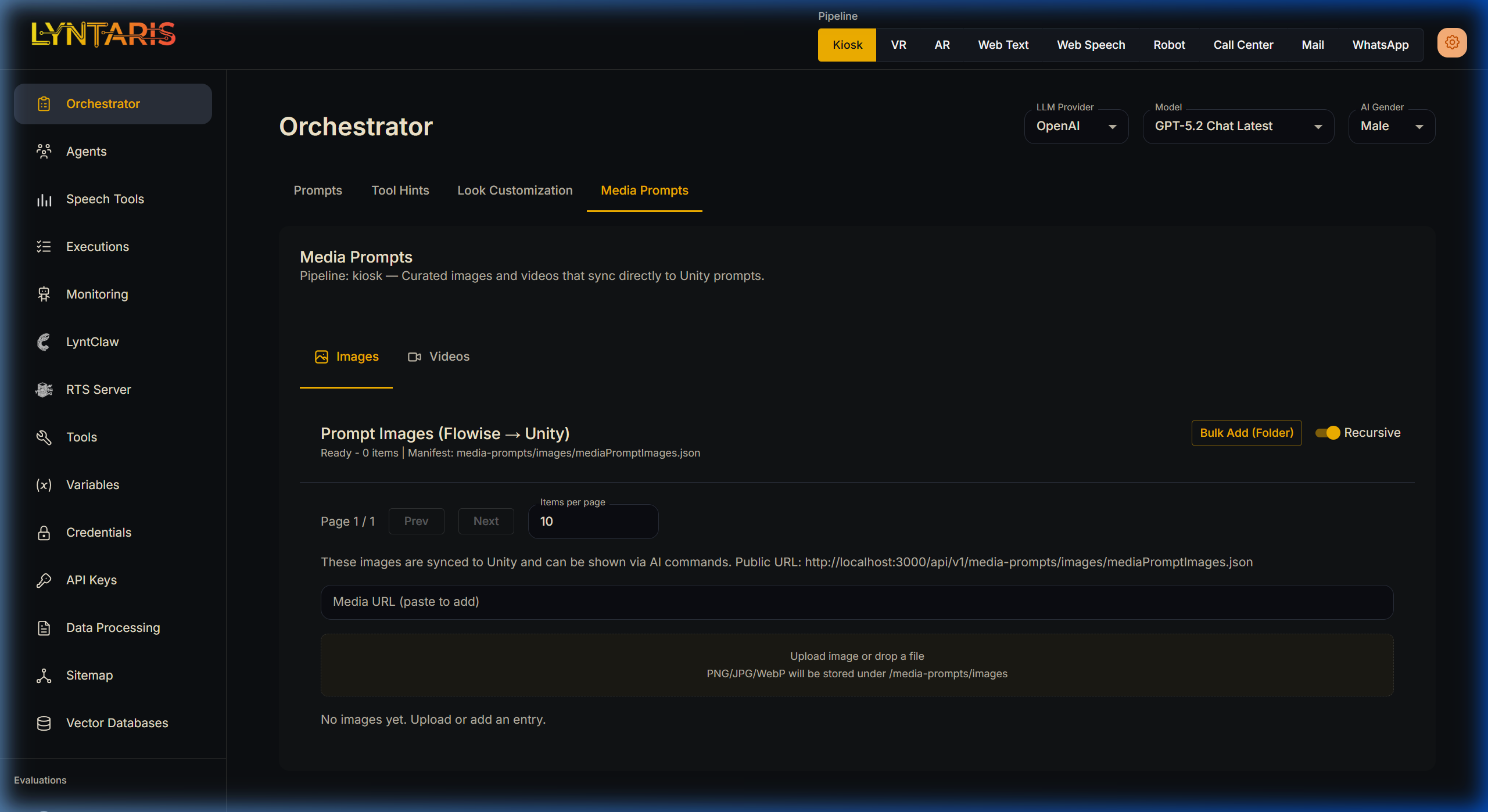
When an Agent needs to show the user a visual (like playing a specific 360-video of Bali in VR, or showing a 2D map on a Kiosk), the prompt choices available to the AI are managed here.
- Dynamic synchronization: When an administrator runs Sync Everything from the Lyntaris deployment tools, packaged images and videos are uploaded so Flowise knows which media exists on devices.
- Orchestrator management: This tab shows that catalog under Images and Videos.
- Tool hint injection: Those entries are merged with Tool Hints so the model only offers media the hardware can actually play.
🌐 Web Speech Pipeline
If you select the Web Speech pipeline from the top-right header, your configuration applies to the Lyntaris "Wonder Widget" designed for standard 2D websites (like your corporate homepage or e-commerce store).
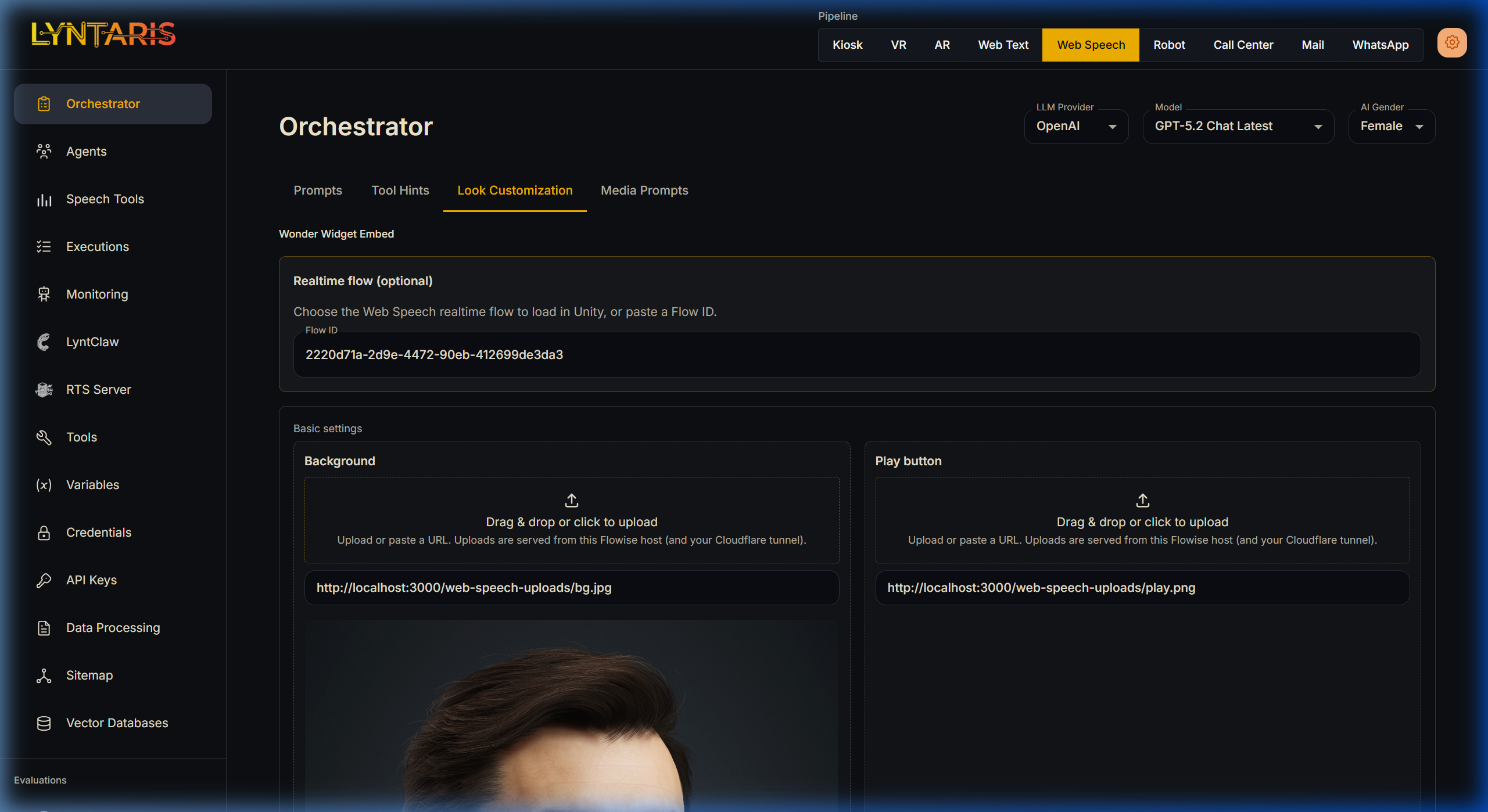
- Embed Code Generation: This tab dynamically generates the raw
<script type="module">HTML embed code you need to inject the 2D floating Avatar widget into a React, WordPress, or Vanilla JS site. - UI Customization: By adjusting the background wallpaper, UI colors, and play button imagery in this portal, the settings are instantly synced via your Cloudflare tunnel to any active users interacting with your website widget.