Vector Databases (Knowledge & Media Stores)
In traditional LLM orchestration (like standard Flowise), building a Vector Database requires manually wiring together Document Loaders, Text Splitters, Embeddings Nodes, and API Keys for every single type of data.
Lyntaris revolutionizes this process. We have abstracted the entire complexity of the data pipeline behind an intuitive, tabbed interface we call Curated Stores. Whether you are deploying an interactive 3D Avatar that needs to answer FAQ questions, or a Vision Agent that needs to identify product images, Lyntaris handles the chunking, embedding, and API routing silently in the background.
Navigate to the Vector Databases section from the main Lyntaris navigation menu to access your centralized data vaults.
1. The Q&A Store (Knowledge Base)
The Q&A Store is the easiest way to inject precise, specialized knowledge into your AI Assistants without touching a single PDF or text file. It bypasses Text Splitters entirely by allowing you to define exact Question and Answer pairs.
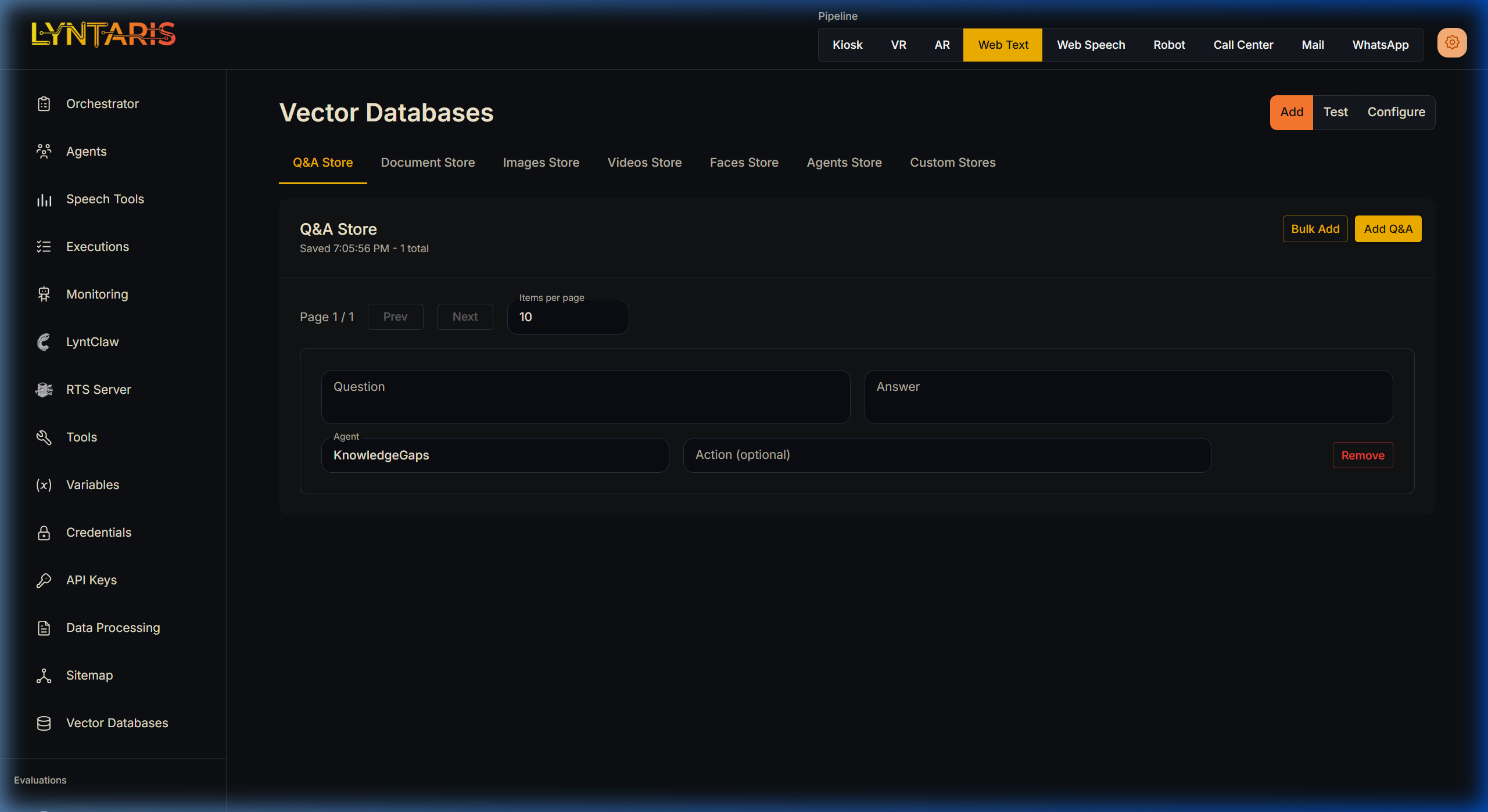
Instant Add Interface for the Q&A Store
How it works in Lyntaris:
- Navigate to the Q&A Store tab.
- Click the yellow Add Q&A button.
- Simply type the
Questionyour users might ask, and the exactAnsweryou want the AI to memorize. - Optional: Assign it to a specific Agent (e.g.,
KnowledgeGaps).
You can also use the Bulk Add feature to instantly import a CSV of hundreds of Q&A pairs, immediately expanding your agent's organizational context.
2. Media Stores (Images & Videos)
If your enterprise relies on multimodal AI (Vision models, Video Analysis), deploying image and video retrieval is usually a severe technical hurdle. Lyntaris provides dedicated Images Store and Videos Store tabs out of the box.
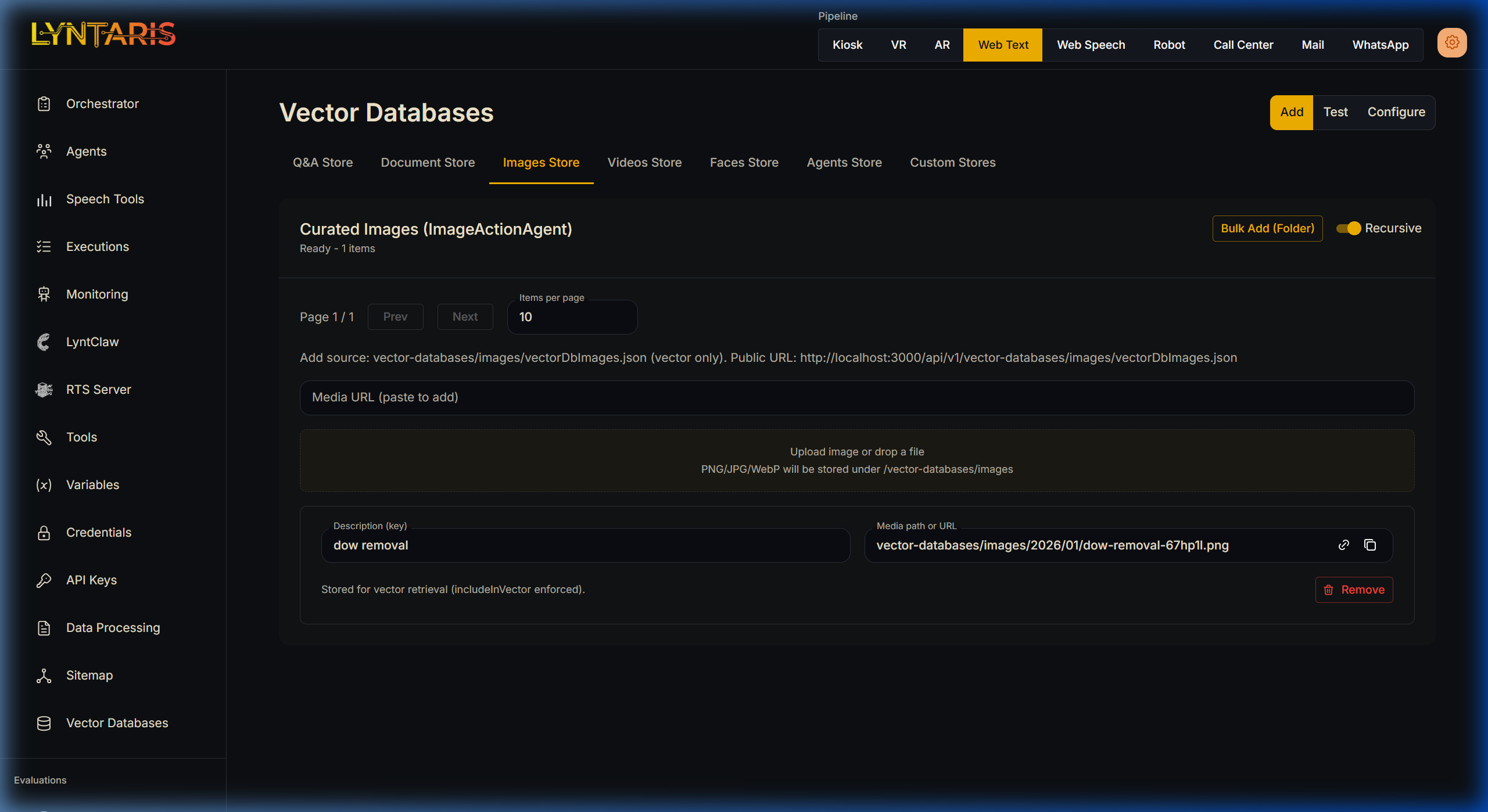
Drag-and-Drop Image Ingestion Pipeline
How it works in Lyntaris:
- Navigate to either the Images Store or Videos Store tab.
- Provide a simple
Descriptionkey (e.g., "dow removal"). - Paste a direct URL, or simply drag and drop the media file directly into the designated upload zone.
Lyntaris immediately processes the media, stores it in its secure filesystem, and generates the required vector metadata (e.g., OpenCV indexing) so your Vision Agents can instantly query against these visual libraries.
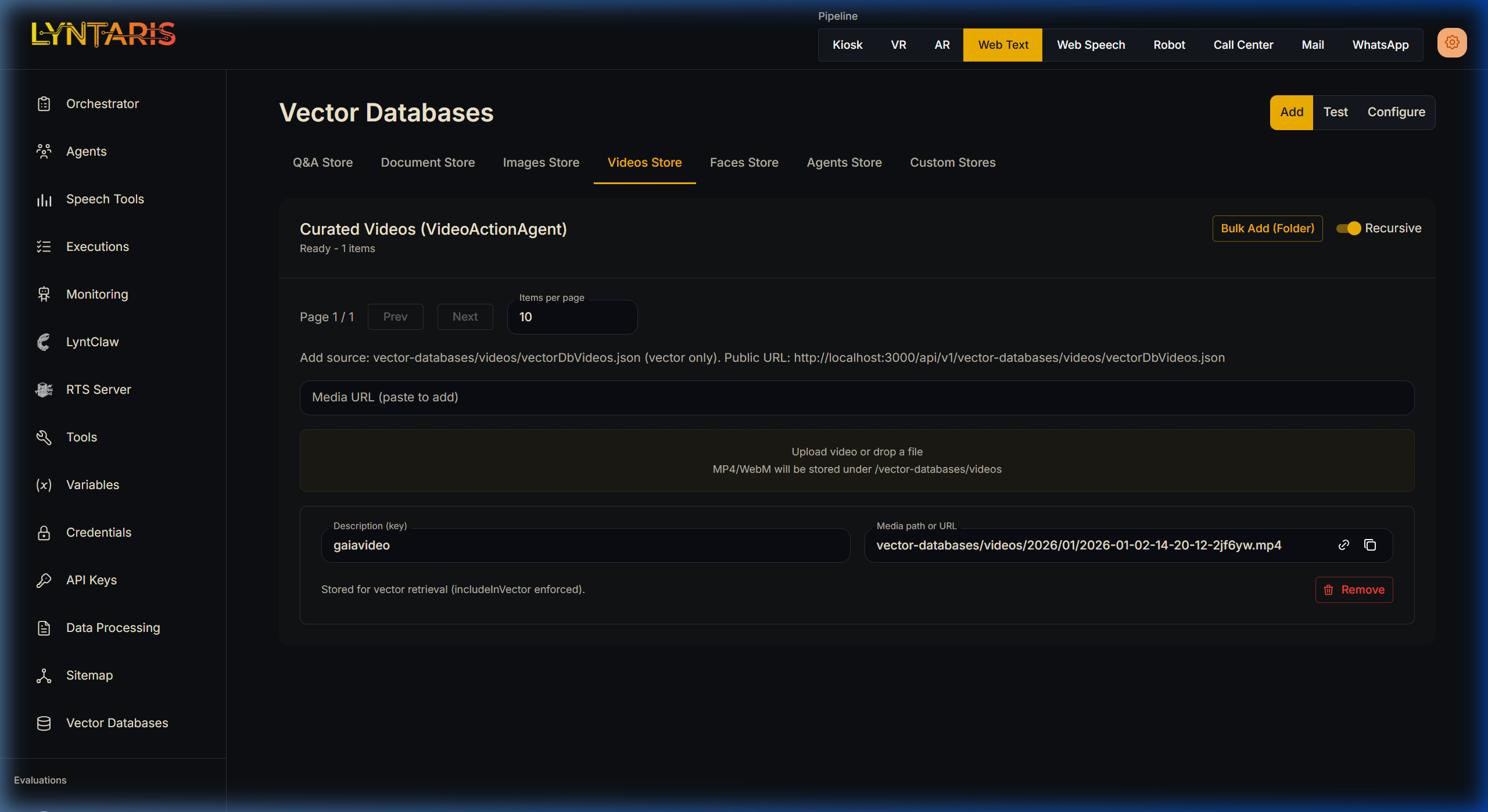
Unified Video Ingestion Interface
3. The Faces Store (Biometrics & Recognition)
For applications requiring facial recognition (e.g., Kiosk security, personalized corporate greetings), Lyntaris exposes a dedicated Faces Store wired directly to the system's InsightFace biometric integrations.
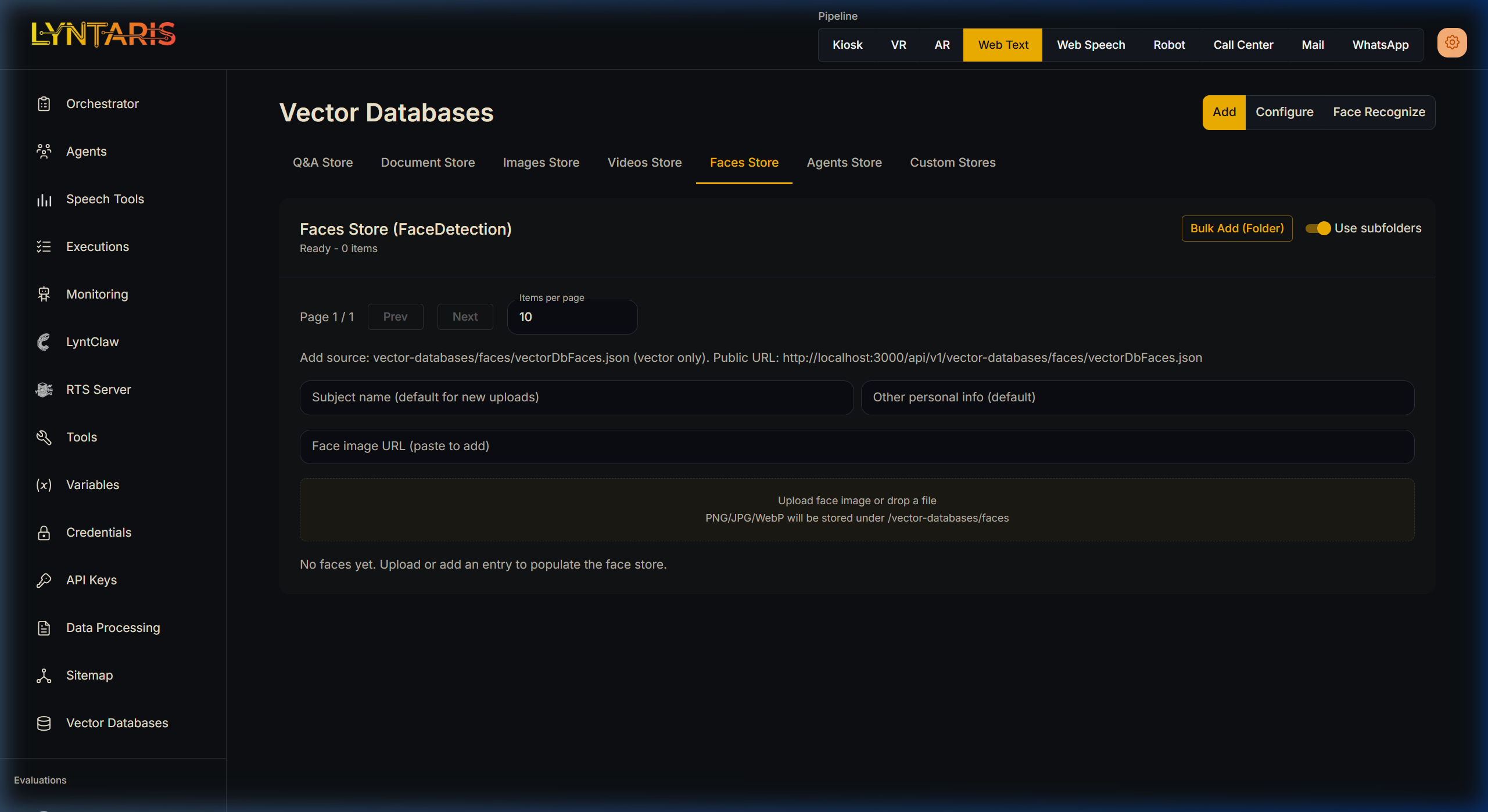
Biometric Subject Registration
How it works in Lyntaris:
- Navigate to the Faces Store tab.
- Enter the
Subject name(the employee or user's name). - Drag and drop a clear
PNG/JPG/WebPheadshot of the subject.
Lyntaris automatically kicks off a Deep Face biometric pipeline to extract the 512-dimensional facial encoding, allowing Kiosk/Camera agents to instantly identify this individual in real-time video streams.
4. Custom Document Stores (Advanced Usage)
While Curated Stores (Q&A, Images, Faces) cover 90% of business logic, there are times you need to ingest massive, unstructured corporate manuals, legal PDFs, or web crawls. For these scenarios, Lyntaris offers the traditional Document Store tab.
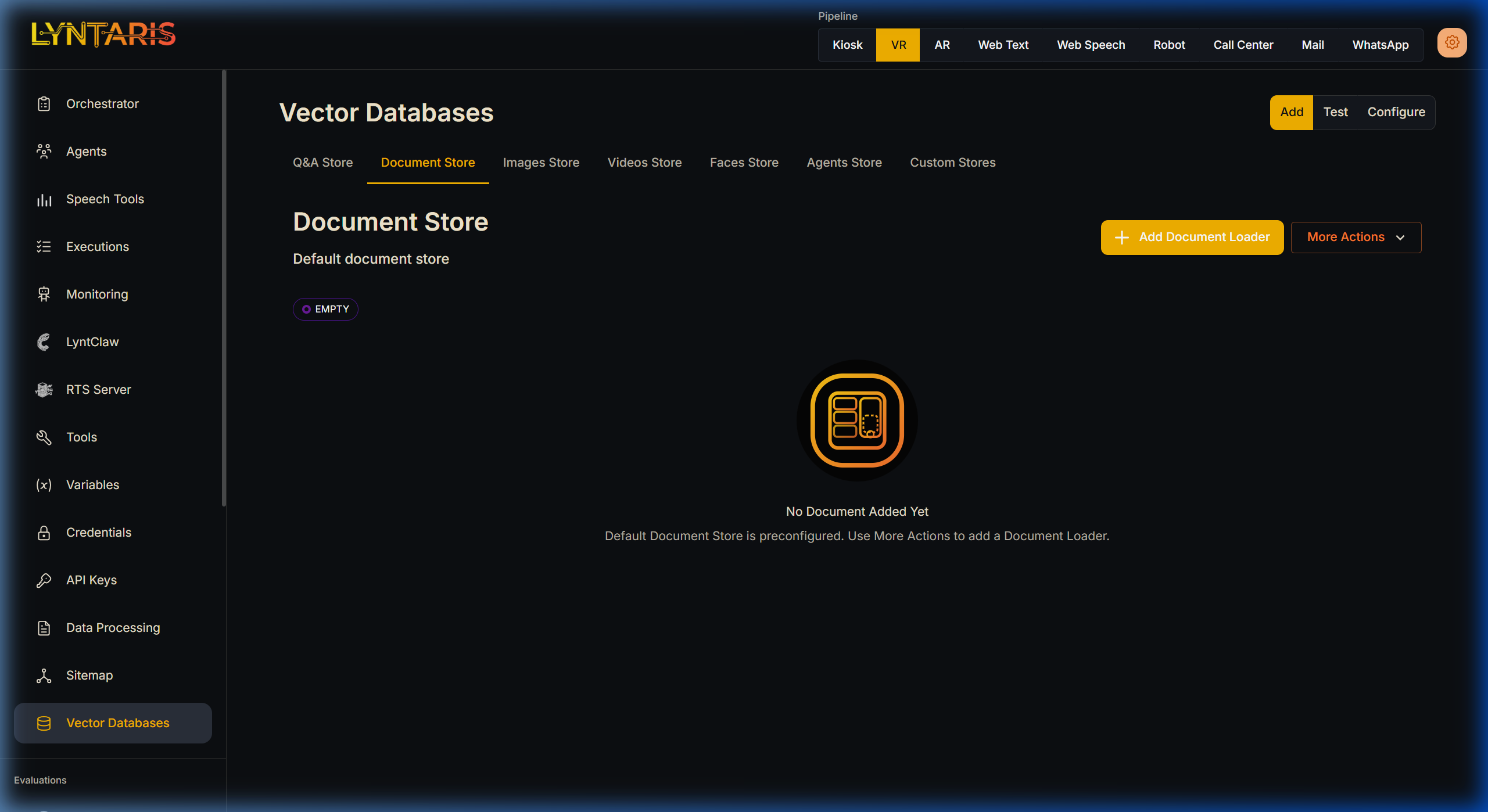
Advanced Custom Document Stores
Clicking into a Document Store opens advanced configuration panels where you have granular control over the embedding theory.
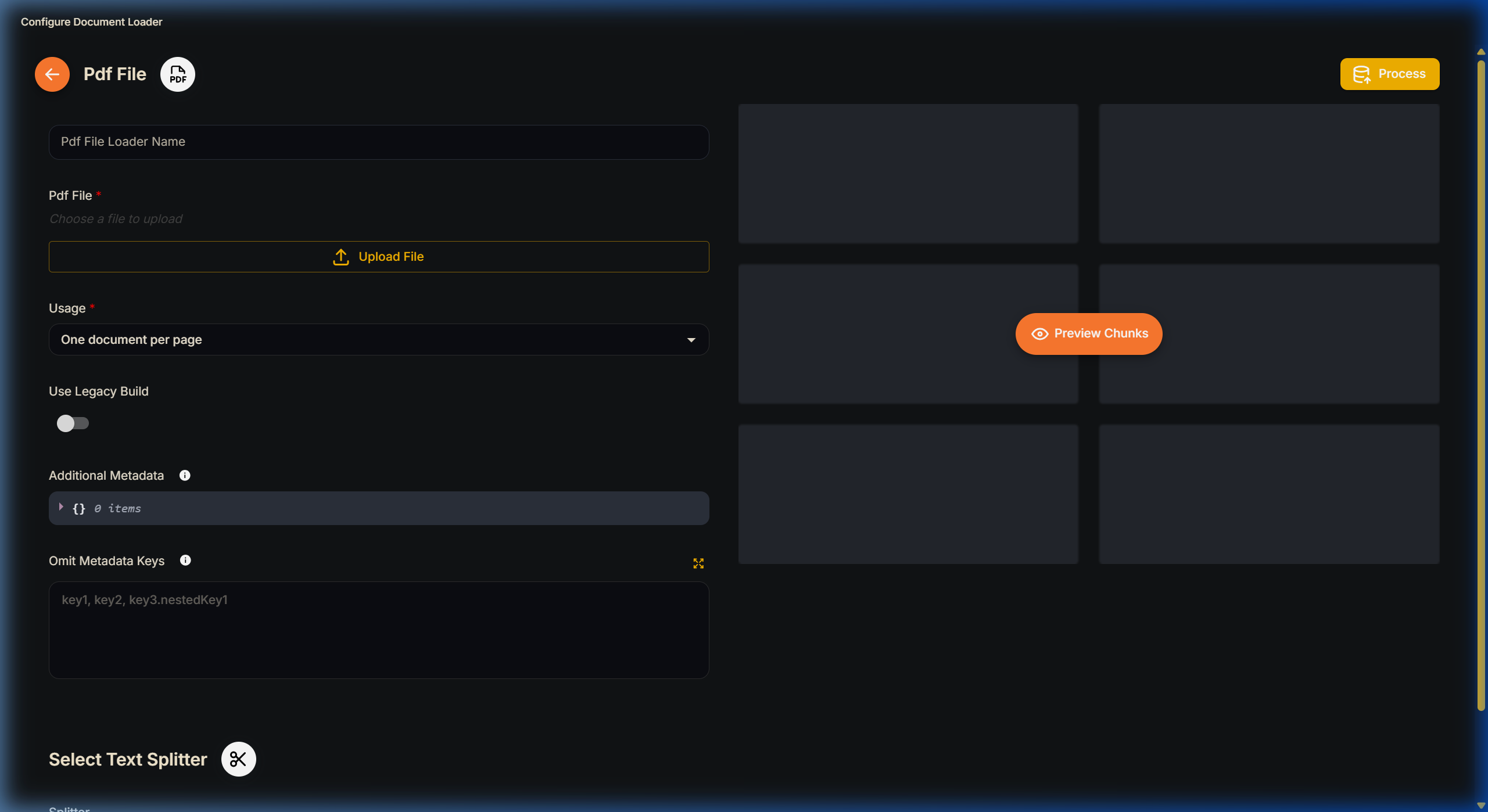
Document Loader and Text Splitter Configuration
Understanding Chunking & Overlap
When uploading a massive PDF, the document must be split into pieces called chunks. The Chunk Overlap setting is vital for maintaining contextual continuity. If a query span across the boundary of two chunks, overlap ensures the last sentence of Chunk A is repeated as the first sentence of Chunk B, guaranteeing the LLM receives complete context.
Vector Embeddings & Dimensions
You will be prompted to select an Embedding Model. The number of Dimensions represents how many features the model extracts. A model with 3,072 dimensions captures highly nuanced meaning but uses more resources, whereas 768 dimensions is faster and cheaper. Your local Vector Database must be configured to match these dimensions natively.
Once your Loader (e.g., PDF) and Splitters are configured, click Upsert. Lyntaris parses your unstructured data, generates embeddings, and securely pushes them into your central vector vault.